
Zoom notifies participants when a recording starts: an on-screen disclaimer for app users, an audio prompt for phone callers. Participants can click "OK" and stay or click "Leave" and exit the meeting. Hosts and account admins can adjust which prompts appear and, on larger accounts, edit the disclaimer text itself. For anything high-stakes, the platform's automatic notice is a starting point, not a substitute for a verbal announcement and a captured, explicit “yes.”
TL;DR:
- Only larger Zoom accounts with 100 or more licenses can customize the recorded consent disclaimer text, while smaller accounts cannot edit the message.
- Participants joining via phone may not see the visual disclaimer, relying instead on audio prompts that may be skipped if the client is outdated or settings are misconfigured.
- Hosts should begin meetings with a verbal announcement and, for high-stakes recordings, request explicit confirmation to ensure legal and ethical compliance.
- Relying solely on the platform's banner for consent is insufficient for legal protection, especially in jurisdictions requiring explicit, audible agreement.
- For sensitive meetings, consider using on-device transcription tools that do not send audio outside the device to enhance privacy and control over recorded data.
Table of Contents
- How Zoom prompts for recording consent across devices
- Customising the recording consent disclaimer
- Modifying recording notification prompts and phone settings
- Account and admin controls: defaults and group locks
- Host best practices for reliable, defensible consent
- Why clear, recorded consent matters for teams and policy
- A privacy-first way to handle meeting minutes
- Primary sources for verifying settings and local law
- Sources
- FAQ
How Zoom prompts for recording consent across devices
Zoom's consent mechanism changes depending on how someone joins, which matters if you're trying to work out whether a prompt was actually seen.
On desktop and mobile apps, Zoom displays an on-screen disclaimer the moment recording begins. Participants get two options: click "OK" to consent and remain in the meeting, or click "Leave Meeting" to exit. There's no middle ground in the interface, though staying silent and simply not clicking anything typically defaults to implied consent by remaining connected.
Phone-only participants get a different experience entirely, since there's no screen to display anything on:
- An audio message plays announcing that the meeting is being recorded.
- Depending on host settings, callers may be asked to press 1 to confirm consent.
- If the recording restarts partway through the call, a second notification can play automatically.
- Older Zoom client versions may not support every prompt variant, so outdated apps sometimes skip the visual disclaimer entirely.
That last point catches people out more than you'd expect. A participant running an unpatched Zoom client can join a recorded meeting and never see the consent dialogue, which is precisely the scenario that makes passive on-screen banners a weaker legal safeguard than a spoken announcement.
Customising the recording consent disclaimer
Not every Zoom account can edit what the consent banner actually says, and the split is based entirely on account size.
- Check your licence count first. Accounts with 100 or more licences, typically Business, Enterprise, or Education tiers, can customise the recording consent disclaimer text. Basic, Pro, and Free Trial accounts under that threshold cannot edit the wording, though they retain control over voice prompt settings.
- Navigate to the right settings path. Sign in to the Zoom web portal, go to Admin, then Account Management, then Account Settings, and open the Recording tab. The disclaimer editor sits under Notification, then Customise Disclaimer.
- Edit and save the custom text. Larger accounts can rewrite the disclaimer shown to participants, for example naming the organisation or specifying how recordings will be used.
- Check consent reporting where it exists. Some account tiers surface a log of which participants acknowledged the prompt, useful for compliance-heavy teams that need a paper trail beyond the recording file itself.
If your organisation sits under the 100-licence line, don't waste time hunting for a text editor that isn't there. Focus instead on the voice prompt controls covered next.
Modifying recording notification prompts and phone settings
Beyond the disclaimer text, hosts and admins control who hears a voice prompt and how insistently Zoom repeats it. These settings live in the same Recording section of the web portal, under Notification.
The main notification controls let you choose:
- Play a voice prompt to all participants when recording starts.
- Restrict the voice prompt to guest users only, useful when internal staff already know meetings are routinely recorded.
- Disable the voice prompt entirely, leaving only the visual disclaimer.
- Require phone users to press 1 before the call is treated as consented.
- Enable repeated audio notifications each time recording restarts mid-meeting.
Phone behaviour deserves particular attention because it's the setting most teams get wrong. If a caller doesn't press 1 after the first prompt, Zoom typically plays a second notification rather than blocking them from the call. The meeting can continue recording regardless of whether that second prompt is acknowledged, which means "press 1" functions more as an audit trail than a genuine gatekeeper. If you need certainty that every phone participant actively consented, don't rely on this alone.
Account and admin controls: defaults and group locks
Whether you can even reach these settings depends on your role and your organisation's account size, not just your personal preferences as a host.
Accounts under 100 licences generally ship with recording notifications switched on by default and limited room for override. Larger organisational accounts split control between the account owner and designated admins, who can:
- Set organisation-wide defaults for voice prompts and disclaimer behaviour.
- Lock specific settings so individual users and group admins cannot disable them.
- Scope different notification rules to specific groups, for example a legal or HR team that always needs stricter defaults than the rest of the company.
If your recording prompts look different from a colleague's, the cause is almost always a group-level lock rather than a bug. Before troubleshooting further, check with whoever administers your Zoom account, usually IT or a workspace admin, since they're the only one who can change scoped settings for your group.
Host best practices for reliable, defensible consent
Zoom's built-in prompts handle the baseline. Whether they're enough depends entirely on what the meeting is for and where the participants are located.
Start every recorded meeting, particularly anything involving external parties, with a spoken announcement: "This meeting is being recorded for minutes and follow-up." Say it while recording is already running so the statement itself becomes part of the file. For higher-stakes calls, such as disciplinary meetings, client negotiations, or anything you might need to defend later, ask for an audible or chat-based confirmation and treat silence as insufficient.
Written consent forms remain the gold standard for interviews, research sessions, or anything destined for publication. A signed release documenting consent and intended use protects both parties far more reliably than a click-through banner, and it survives scrutiny in ways an automated prompt never will.
Watch for third-party notetaker bots joining on someone else's behalf. Practitioners increasingly treat AI notetakers as a separate party for consent purposes, meaning hosts should state explicitly whether a transcript or recording will be processed by an external tool, not just whether the meeting itself is recorded. Disable auto-join for unfamiliar bots unless every participant has agreed to their presence.
Pro Tip: Keep a short, repeatable script ready: "This meeting will be recorded for minutes and training; please say 'yes' in chat or aloud if you consent." Save the chat log or the recorded confirmation as your evidence, not just the fact that a banner appeared on screen.
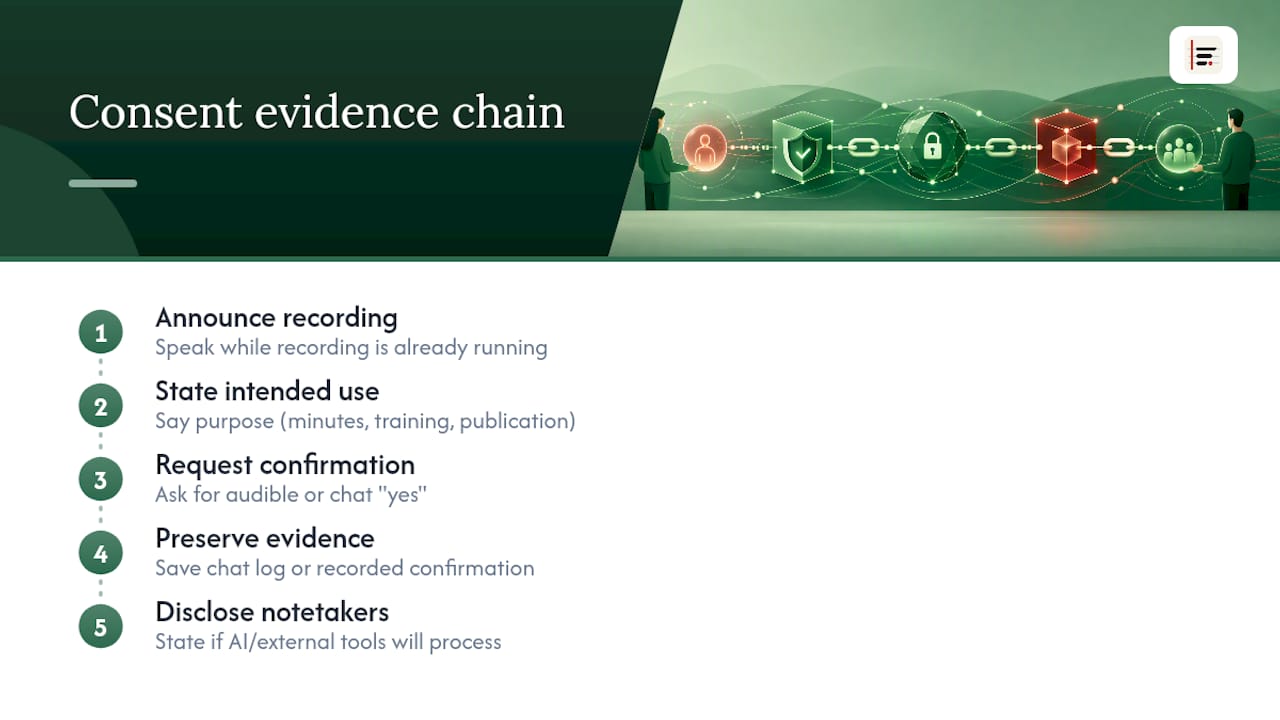
Don't lean on the platform banner alone for high-stakes recordings; practitioner guidance consistently recommends an active, audible confirmation on top of it.
Breakout rooms need their own thought. Zoom's consent prompt behaviour in breakout rooms can differ depending on whether recording is initiated at the main session level or restarted within the smaller room, so re-announce recording status if a breakout is recorded separately.
For storage and sharing, only distribute a recorded meeting to people who were told it would be recorded, and avoid forwarding recordings to anyone outside that original group without fresh consent. External participants joining from platforms other than Zoom, dial-in guests, or web-client visitors from partner organisations should get the same verbal announcement, since you can't assume their client displayed the standard disclaimer correctly.
Why clear, recorded consent matters for teams and policy
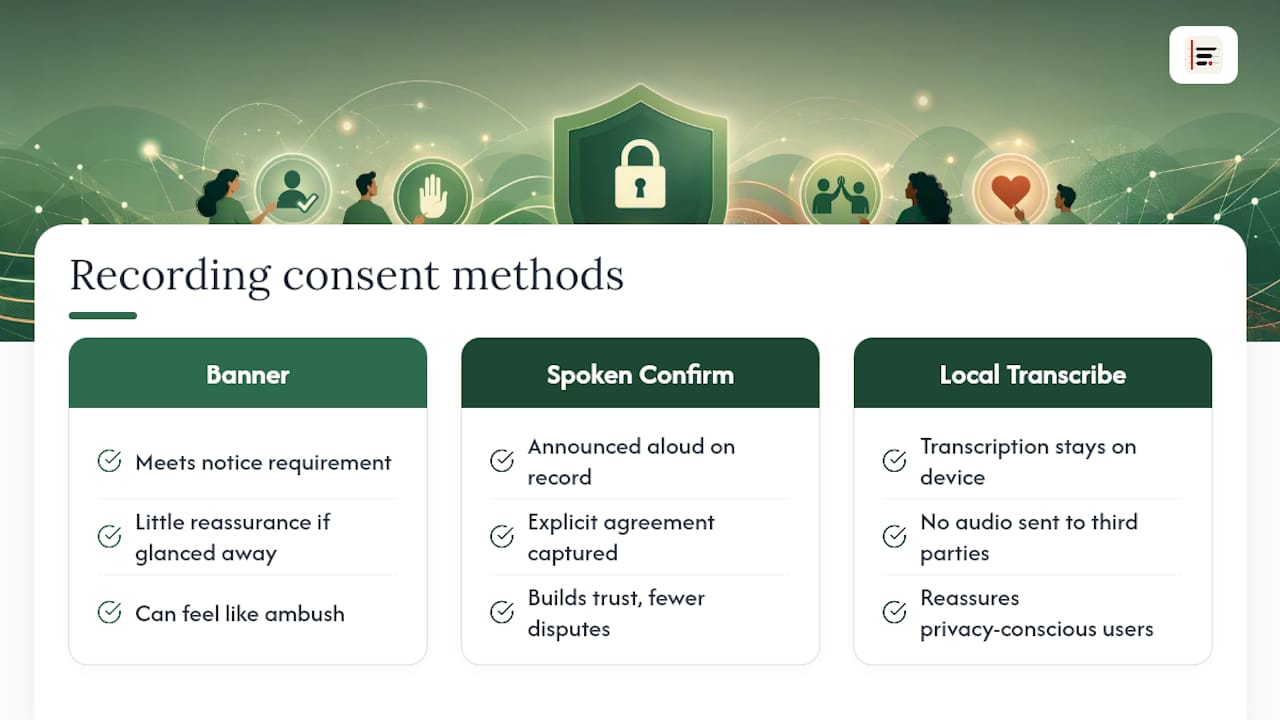
Most disputes over recorded meetings aren't really about the law. They're about someone feeling ambushed by a recording they didn't fully register consenting to. A visual banner satisfies the platform's own notice requirement, but it does little to reassure a participant who glanced away from their screen for three seconds.
Even where one-party consent is legally sufficient, explicit agreement protects something a statute doesn't: trust. Teams that announce recordings out loud and capture the confirmation rarely have arguments about it later. On-device transcription tools that never send audio to a third-party server give privacy-conscious participants one less thing to worry about, which is a genuine, practical reason to prefer that approach over cloud-only alternatives.
— James
A privacy-first way to handle meeting minutes
There's another layer to recording consent that platform settings can't fully solve: what happens to the audio once it leaves the meeting. If your team wants clear minutes without adding a third-party server to the list of things participants need to consent to, Minuted processes audio and generates transcripts on-device, meaning no recording ever needs to travel to an external cloud to be turned into usable notes.
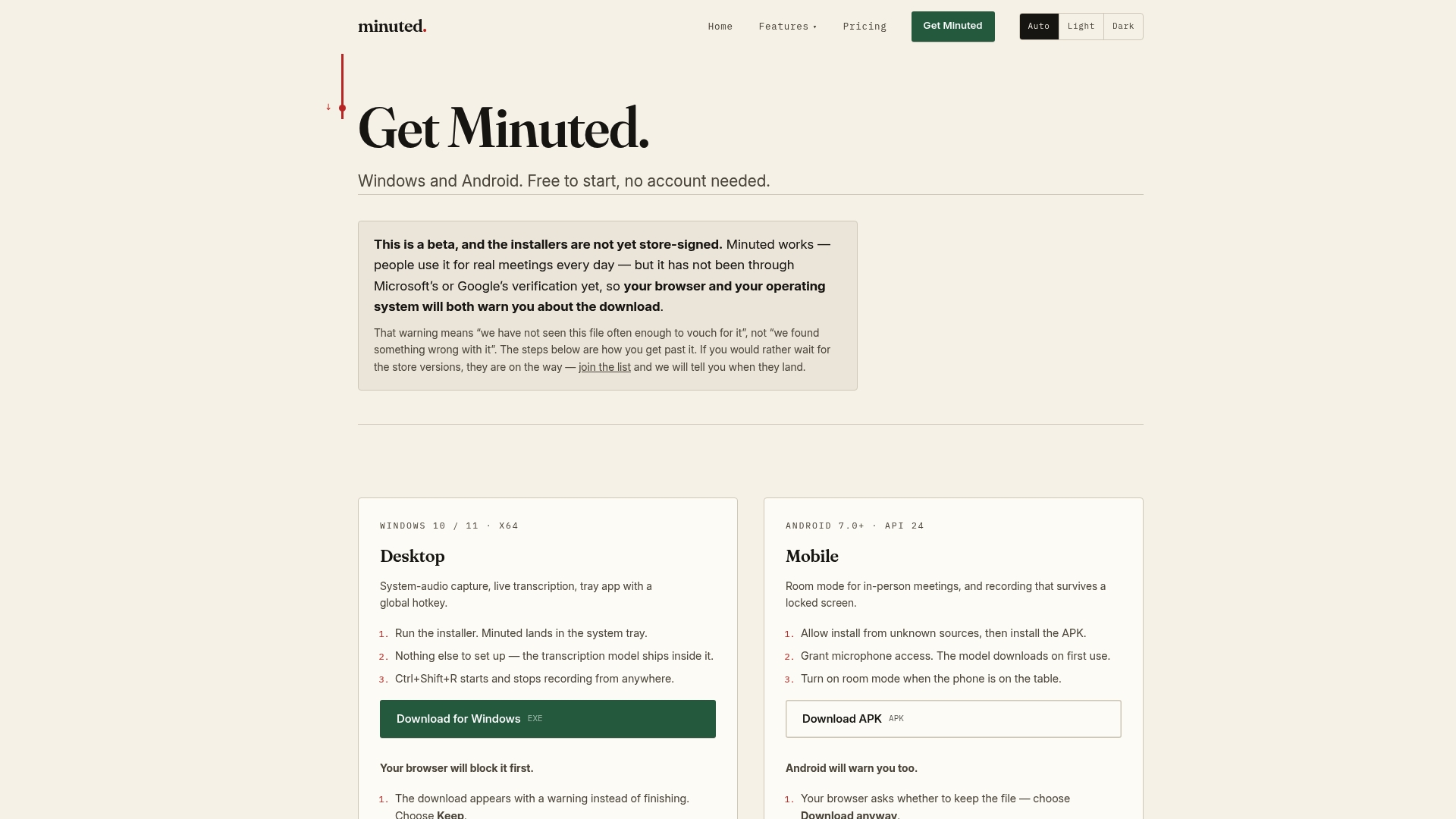
Minuted offers real-time transcription with speaker labelling, can operate without an internet connection, and can sync with calendar and task tools after meetings. For teams recording client calls, interviews, or in-person discussions, that on-device approach to note-taking removes one common objection participants raise: "where is this recording actually going?" You can see exactly what stays on your device versus what any other notetaker might send elsewhere. Head to the features page to see the full toolset, or start with a download to try it on your next meeting.
Primary sources for verifying settings and local law
Settings change between Zoom releases, and recording law varies by jurisdiction, so verify anything critical against the primary source rather than a secondhand summary.
- Justia's 50-state recording law survey breaks down one-party versus all-party consent requirements state by state.
- The Recording Law consent checker lets you look up jurisdiction-specific rules quickly before a sensitive call.
- Berkeley's privacy considerations guide for Zoom covers institutional best practice beyond the platform's defaults.
Sources
- Recording Phone Calls and Conversations - 50 State Survey | US State Phone Recording Laws | Justia
- US Recording Consent Checker (All 50 States + DC), Free | Recording Law
FAQ
Are you allowed to record a Zoom meeting without consent?
It depends on your jurisdiction. Many US states allow one-party consent, meaning only the recorder needs to agree, but several states, including California, Florida, and Illinois, require all-party consent, and Zoom's own notification settings are designed to help hosts meet that bar.
How do I give recording permission on Zoom?
When a meeting recording starts, click "OK" on the on-screen disclaimer to consent and remain in the meeting, or click "Leave" to exit. Phone participants confirm consent by staying on the line or pressing 1 if the host has enabled that requirement.
Can I sue someone for recording me without my permission in the UK?
UK recording rules generally sit under data protection and privacy law rather than a strict all-party consent statute, so liability usually turns on reasonable expectation of privacy and how the recording is used, not simply the act of recording itself; anyone concerned about a specific situation should seek legal advice rather than relying on a general rule.
Will Zoom tell you if someone is recording?
Yes. Zoom is built to notify participants automatically, showing an on-screen disclaimer to app users and playing an audio prompt to phone callers, though older client versions or misconfigured settings can occasionally prevent the prompt from displaying.
Can a host customise what the recording consent message says?
Only on accounts with 100 or more licences, typically Business, Enterprise, or Education tiers; smaller accounts can toggle voice prompts on or off but cannot edit the disclaimer text itself.