
Yes, you can transcribe audio without any cloud processing, and the practical route depends on what you are recording. For meetings, an on-device app with speaker labelling and calendar integration is usually the fastest path. For one-off files, a browser-local tool or self-hosted bundle works just as well without any software installation.
TL;DR:
- On-device transcription tools vary from browser-local options for quick, installation-free use to offline desktop apps suited for secure environments with no internet access.
- Hardware requirements depend on model size, with larger models demanding more disk space, RAM, and preferably a GPU for faster processing.
- Confirm offline operation by monitoring network activity, disabling telemetry, and verifying that no data leaves the device during transcription.
- Meeting-focused tools like Minuted provide real-time transcription with speaker labels and are ideal for structured documentation, unlike general offline bundles.
- Local transcription is best for teams prioritizing privacy, control, and regular use of structured meeting records rather than occasional file conversions.
Table of Contents
- What are the four practical approaches to transcription without cloud?
- How do you transcribe a local recording step by step?
- What hardware and model size should you expect?
- How do you confirm nothing leaves your device?
- Which local transcription option suits your use case?
- Why does a meeting-first on-device product often fit best?
- When is local transcription the right long-term choice for a team?
- How does Minuted handle on-device meeting transcription?
- Sources
What are the four practical approaches to transcription without cloud?
Local transcription splits into four workable categories, and each suits a different level of technical comfort and a different type of audio.
- On-device apps: purpose-built software that runs a speech model directly on your laptop or phone, ideal for meetings and interviews where you want speaker labels and structured output without touching a terminal.
- Browser-local tools: sites that load a model into your browser using WebGPU or WebAssembly, so the audio never leaves the device once the model is cached, and there is nothing to install.
- Self-hosted CLI or bundles: open-source packages such as whisper-local or command-line tools like whisper.cpp, aimed at technical users who want scripting, batch processing, or an internal API replacement.
- Air-gapped desktop apps: fully offline GUI applications, such as Transcribe Offline, built for environments where no internet connection is permitted at all.
A journalist working from a locked-down laptop will lean towards the fourth category. Someone transcribing a single voice memo will find the second category quicker than installing anything.
How do you transcribe a local recording step by step?
The mechanics are the same whichever category you choose. Only the interface changes.
- Export the source file. Pull the recording off Zoom's local recording folder, a phone's voice memo app, or a dictaphone, and save it as a standard format such as WAV or MP3.
- Pick your tool category. Match the job to the categories above, based on whether you need speaker labels, batch processing, or zero installation.
- Download the model once. Most Whisper-based tools require a single upfront download before they can run fully offline, with model sizes varying from small to large, requiring more disk space accordingly, according to practical hardware guidance from Iternal.
- Disconnect and run. Switch off Wi-Fi or disable network access where possible, then feed the file in and let the model process it. This step confirms, in practice, that nothing needs an active connection once the model is cached.
- Check speaker and timecode settings. Tools like Transcribe Offline offer optional diarisation, so verify it is switched on if you need to know who said what and when.
- Export and clean up. Save the transcript as text or subtitles, a common workflow for desktop transcription tools, then delete temporary audio files and clear any cache that is not needed for future runs.
Pro Tip: Run your first transcription with Wi-Fi turned off deliberately. If the tool still produces a transcript, you have direct proof of offline operation rather than a vendor's claim.
What hardware and model size should you expect?
Model choice is the single biggest factor in both speed and accuracy, and it dictates what your machine needs to cope.
Smaller models (tiny and base) download quickly, often under a few hundred megabytes, and run comfortably on a CPU. Mid-sized models improve accuracy but ask more of your processor. The largest models, several gigabytes at first download, benefit noticeably from a GPU, particularly for multi-hour recordings or batch jobs. According to Iternal's hardware notes, that one-time download is the main overhead you should plan for, not ongoing bandwidth.
- CPU is usually sufficient for short meetings and single-speaker dictation using small or medium models.
- GPU acceleration pays off for long lecture recordings, batch transcription of multiple files, or anyone running the largest models regularly.
- Disk space should account for the model file itself plus temporary working files, which can briefly double the space needed during processing.
- RAM of 8GB is typically enough for smaller models; larger models are more comfortable with 16GB or more.
A one-hour meeting on a small model might finish in a few minutes on a modern laptop CPU. The same file on a large model without GPU support can take considerably longer, which is why matching model size to your actual hardware matters more than chasing the biggest download available.
How do you confirm nothing leaves your device?
Trusting a tool's privacy claim is not the same as verifying it. A short checklist turns a marketing promise into something you can actually confirm.
- Watch network activity. Use your operating system's activity monitor or a tool like Wireshark to check for outbound connections while transcription runs.
- Review telemetry settings. Many apps bundle optional analytics or crash reporting; disable anything not strictly required for the tool to function.
- Control permissions. Check microphone, file, and network permissions in your device settings, and revoke anything the tool does not need.
- Manage the model cache. Know where the downloaded model file lives on disk, and clear it once you are confident you will not need that tool again soon.
- Audit exports. Check transcript files and any embedded metadata before sharing them, since accidental cloud sync through a linked folder can undo all of the above.
Pro Tip: If a "local" tool asks for a login before you can transcribe anything, treat that as a red flag. Genuine offline tools rarely need an account to function.
Which local transcription option suits your use case?
Not every job calls for the same tool, and matching the category to the task saves setup time.
- Meeting teams get the most value from meeting-focused on-device apps that offer real-time transcription, speaker labelling, and calendar integration, since these features are built around live discussion rather than a static file.
- Journalists and secure interviews are better served by air-gapped desktop bundles or, for the most sensitive material, manual in-house transcription with no software installed at all.
- Lectures and batch audio benefit from GPU-accelerated local bundles, where throughput across long recordings matters more than real-time speed.
- One-off memos rarely justify an installation. A browser-local tool or a lightweight mobile app handles a single file without any setup overhead.
Why does a meeting-first on-device product often fit best?
General offline transcription bundles solve the file-in, transcript-out problem well. Meetings need more than that. They need to know who spoke, when the discussion happened, and what needs to happen next.
Minuted's on-device processing is built specifically around live meeting capture rather than batch file conversion, with real-time transcription, speaker labelling, and no requirement for an internet connection during the session itself. That distinguishes it from general-purpose offline bundles, which typically transcribe a file after the fact without any structure applied to it.
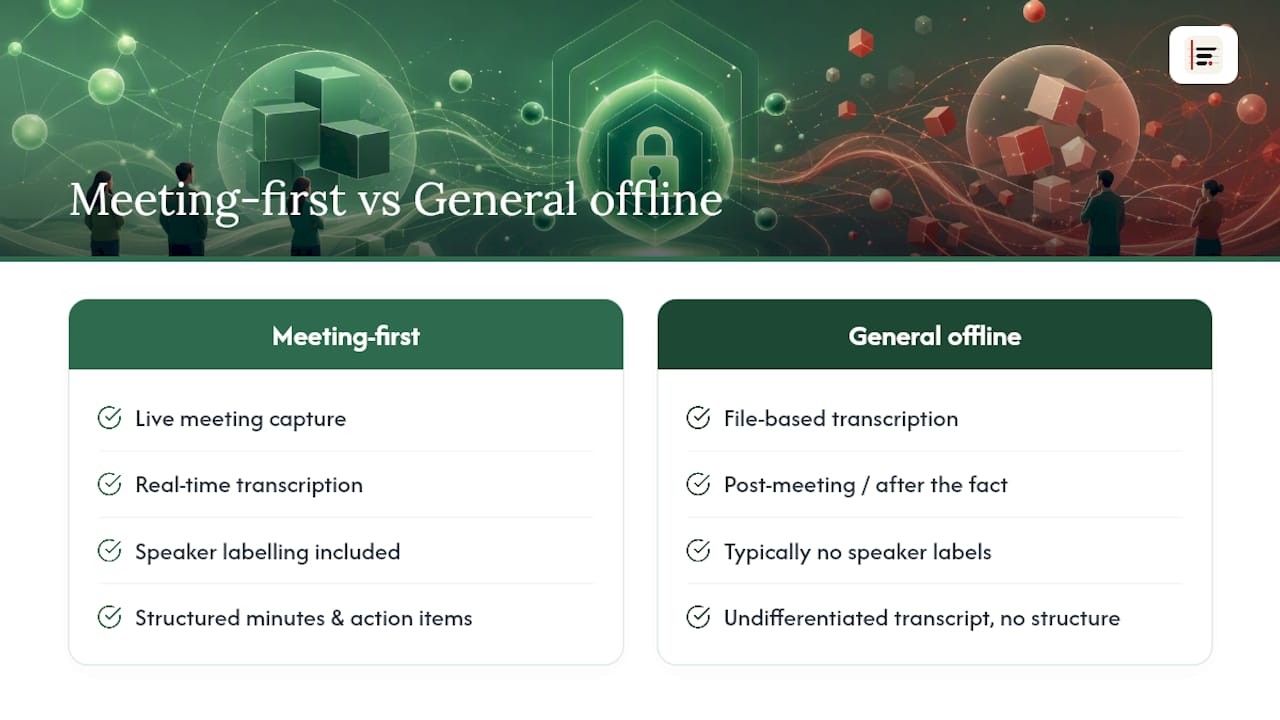
The practical business benefit is straightforward: less time spent typing notes during a meeting, and a documented record of decisions and action items that a team can actually hold each other accountable to afterwards, rather than a wall of undifferentiated text.
When is local transcription the right long-term choice for a team?
Local transcription rewards teams willing to think about it as infrastructure, not a one-off download. Hardware costs stay upfront, model updates are occasional rather than continuous, and the privacy benefit compounds every time sensitive audio never touches a server. What catches teams out is treating a cached model as permanent rather than something to govern. Decide who manages updates, where the cache lives, and when it gets purged, before the tool becomes load-bearing for how your meetings get documented.
— James
How does Minuted handle on-device meeting transcription?
Minuted transcribes meetings directly on your device, turning rough notes and live audio into structured minutes with speaker labels, without sending audio to a server to do it. The same on-device approach that keeps a file-based transcription tool private also applies here, but built around the flow of a live discussion rather than a recording you process afterwards.
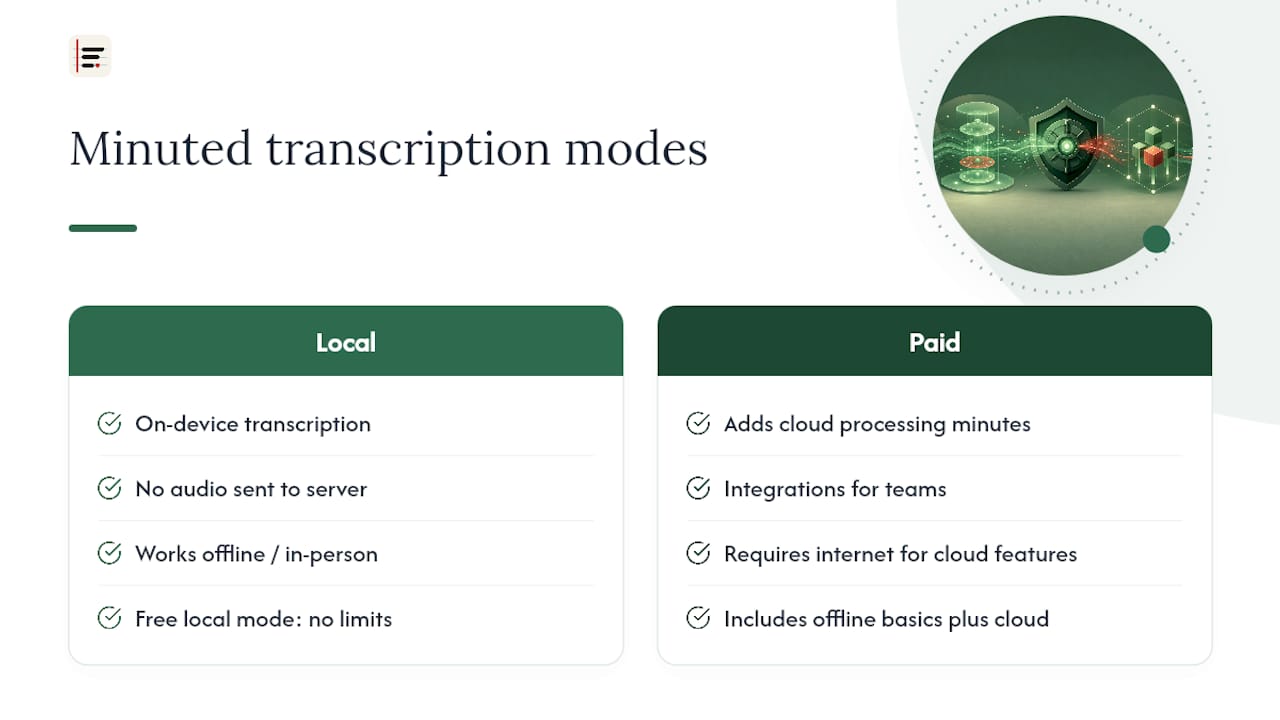
For in-person sessions where no internet connection is available at all, the in-person meeting notes workflow covers that scenario directly. Free local mode has no minute limits, and paid plans add cloud processing minutes and integrations for teams who want more than the offline basics. Start by downloading Minuted and running your first meeting through local mode to see the transcript build in real time.
Sources
- whisper-local
- Transcribe Offline (openresearchtools)
- Free Audio Transcription, No Upload | PocketWebTools