
You can transcribe a Slack Huddle, but which method works depends on your plan and your appetite for cloud processing. Slack's built-in AI notes are the fastest route, provided everyone in the huddle is a full workspace member on a paid plan. For guests, compliance-sensitive teams, or verbatim accuracy, the better routes are recording locally and transcribing afterwards, inviting a meeting bot, or building on Slack's recording SDK. If privacy is the deciding factor, on-device tools such as Minuted avoid the cloud step entirely.
TL;DR:
- Native Slack AI notes are limited to paid plans and internal sessions, excluding external guests, with summaries that are not verbatim and lack timestamps.
- Recording locally and transcribing afterward ensures accuracy, works across all Slack plans, and is essential for sensitive, compliance-driven, or guest-involving huddles.
- Using a meeting bot provides real-time, speaker-differentiated transcriptions and integrates with workflows, but requires permission and often incurs additional costs.
- Building an automated capture pipeline with Slack's SDK facilitates structured, searchable transcripts with detailed metadata, suitable for engineering or compliance purposes but demanding technical maintenance.
- On-device tools like Minuted offer privacy-first, offline transcription that processes audio locally without cloud transfer, ideal for confidential or regulated discussions.
Table of Contents
- How does Slack's native huddle transcription work?
- Record the huddle locally and transcribe it afterwards
- Should you use a meeting bot to join and transcribe your huddles?
- Building automated capture with Slack's recording SDK
- How to choose the right transcription approach for your team
- Why privacy-first transcription belongs in your Huddle workflow
- What actually makes a huddle transcript useful afterwards
- Minuted: privacy-first transcription for your Huddles
- Sources
How does Slack's native huddle transcription work?
Slack's AI notes feature is the path of least resistance if your workspace qualifies. Someone in the huddle starts AI notes from the huddle controls on desktop or mobile, and Slack begins generating a live record as the conversation happens. Admins can also configure notes to start automatically for specific channels, removing the manual step for recurring meetings.
Once the huddle ends, Slack posts a canvas into the thread containing a summary, a list of action items, and an embedded transcript. Anyone with access to that channel or direct message can read it, which is convenient but worth remembering if the conversation touched on anything sensitive.
The limits matter more than the pitch suggests:
- Available only on paid Slack plans, not the free tier.
- External guests are excluded entirely from AI note taking, so mixed internal/external huddles get no native transcript.
- Exports are limited and the transcript is summary-first, not verbatim, with weak speaker separation and no reliable timestamps.
Slack AI notes suit quick internal syncs on low-stakes topics where a rough record beats no record. For anything requiring precision, an audit trail, or guest participation, you need a different method.
Record the huddle locally and transcribe it afterwards
Recording first is the most dependable fallback because it works on every Slack plan and produces a verbatim transcript rather than a summary. This is also the only sensible option when a huddle includes external guests who can't use Slack's AI notes at all.
The process is straightforward, though it varies slightly by device:
- On Mac, use QuickTime Player's screen recording with internal audio, or a dedicated audio capture app if you only need sound.
- On Windows, Xbox Game Bar (built in) or a lightweight tool like OBS captures the huddle audio alongside any screen share.
- On mobile, screen recording with microphone input works for iOS and Android, though audio quality depends on your device's mic.
- Extract the audio file and upload it to a transcription service, which typically returns TXT, SRT, or DOCX output depending on whether you need plain text or subtitle-style timestamps.
This route hands you full control over accuracy, formatting, and how long the transcript lives, but it costs manual effort. Someone has to remember to hit record every time, and if you're uploading to a cloud transcription service, you're sending potentially sensitive audio outside your organisation. That's the trade VidNotes' guide on transcribing huddles walks through in more depth, and it's the same trade that pushes privacy-conscious teams towards on-device processing instead.
Pro Tip: Name your recording files with the date and huddle topic before uploading anywhere. It sounds trivial, but searching a folder of "audio_003.mp4" files six months later is how transcripts stop getting used at all.
Should you use a meeting bot to join and transcribe your huddles?
A meeting bot joins the huddle as a participant, usually invited by a workspace admin or added via an integration, and transcribes the conversation as it happens. Unlike Slack's native notes, bots don't exclude guests, and they tend to deliver richer output because that's their entire function rather than a secondary feature.
Typical bot capabilities include:
- Live transcription with genuine speaker diarisation, not just a best guess at who spoke.
- Searchable transcript archives across multiple huddles, rather than one canvas per session.
- Integration with CRMs, task managers, or knowledge bases so notes flow into existing workflows.
- Export formats built for downstream processing, not just reading.
Because a bot's presence in the huddle is visible to participants, consent is built into the format. Even so, best practice is to say out loud that a bot is joining and why, particularly with external guests who haven't agreed to your workspace's tools. Bots make sense when transcription is a recurring, high-volume need. Meetstream's overview of recording and transcript options for huddles is a useful reference for how these integrations typically request and use workspace permissions.
Building automated capture with Slack's recording SDK
Engineering and compliance teams sometimes need transcription baked into a pipeline rather than triggered manually each time. Slack does not expose stored huddle audio through its API once a huddle has ended, so any programmatic approach has to capture audio while the huddle is live, using a bot or a recording SDK.
What this setup typically delivers:
- MP4 recordings alongside transcripts with timestamps and participant metadata.
- Word-level timing data useful for analytics or searchable transcript indexing.
- Webhook delivery of finished transcripts into your own storage and systems.
The catch is that retention policy, encryption, and access control all become your responsibility once you own the pipeline. This route suits teams with the engineering capacity to maintain it, and it's usually reserved for compliance-driven organisations or analytics teams that need structured meeting data at scale, not ad-hoc transcription.
How to choose the right transcription approach for your team
Slack counts hundreds of millions of active users worldwide, and a meaningful share of huddles happening across that base now involve some form of automated note taking. Picking the right method comes down to weighing five factors against each other rather than chasing the "best" tool in isolation.
- Accuracy needs — do you need verbatim transcripts with timestamps, or is a summary enough?
- Privacy and compliance — does the content involve regulated data that shouldn't touch a third-party cloud?
- Admin friction — can you rely on manual steps, or do you need something that starts automatically?
- Cost — native Slack AI notes come with your existing paid plan; bots and SDKs usually carry separate fees.
- Automation and scale — is this a one-off huddle or a repeated, high-volume workflow?
As a rule of thumb: regulated or sensitive data points towards on-device processing, recurring automated capture points towards a bot or SDK, and occasional ad-hoc needs are well served by recording and transcribing manually. Before enabling any automated capture, ask your IT and legal teams where transcripts get stored, who can access them, and how long they're retained.
- Small remote team: Slack AI notes for routine syncs, recording as backup for anything important.
- Compliance or legal team: on-device transcription by default, given the regulatory exposure that comes with sending sensitive audio to third-party cloud services.
- Engineering or analytics team: a recording SDK feeding transcripts directly into existing data pipelines.
Why privacy-first transcription belongs in your Huddle workflow
Cloud transcription tools work, but they mean sending your team's conversations to a third-party server. On-device transcription avoids that step entirely, which matters more than most teams realise until a strategy session, legal discussion, or client call ends up sitting on someone else's infrastructure.
Minuted approaches this by processing audio directly on the device, with nothing sent to external servers. It labels speakers automatically, works offline, and syncs finished minutes into calendar and task tools like Todoist, monday.com, and Notion once you're back online.
Where this fits best:
- Sensitive strategy or leadership huddles where verbatim accuracy matters but cloud exposure doesn't.
- Regulated sectors handling health, legal, or financial information.
- Teams in poor-connectivity environments who still need reliable capture.
Minuted doesn't replace Slack Huddles or its native AI notes. It sits alongside them, giving you a second layer for the conversations where privacy and precision outweigh convenience.
What actually makes a huddle transcript useful afterwards
Getting a transcript is only half the job. In practice, the habits around it decide whether anyone reads it again. I'd tell any team starting out to announce recordings out loud and set a short agenda before the huddle begins. It sounds obvious, but an unlabelled forty-minute transcript with no structure gets skimmed once and forgotten.
Save transcripts somewhere consistent, ideally a shared channel, and link action items directly back to your task manager rather than leaving them buried in a canvas. Start with a simple minutes template. Don't over-engineer it. Adjust based on what your team actually opens a week later, not what looked good in a demo.
— James
Minuted: privacy-first transcription for your Huddles
Minuted gives you a verbatim, speaker-labelled transcript without sending a single second of audio to the cloud, which is the gap every other option in this article leaves open somewhere. Where Slack AI notes summarise and bots depend on third-party servers, Minuted processes everything on your device in real time, works offline, and still hands you structured minutes ready to sync with your calendar and task tools.
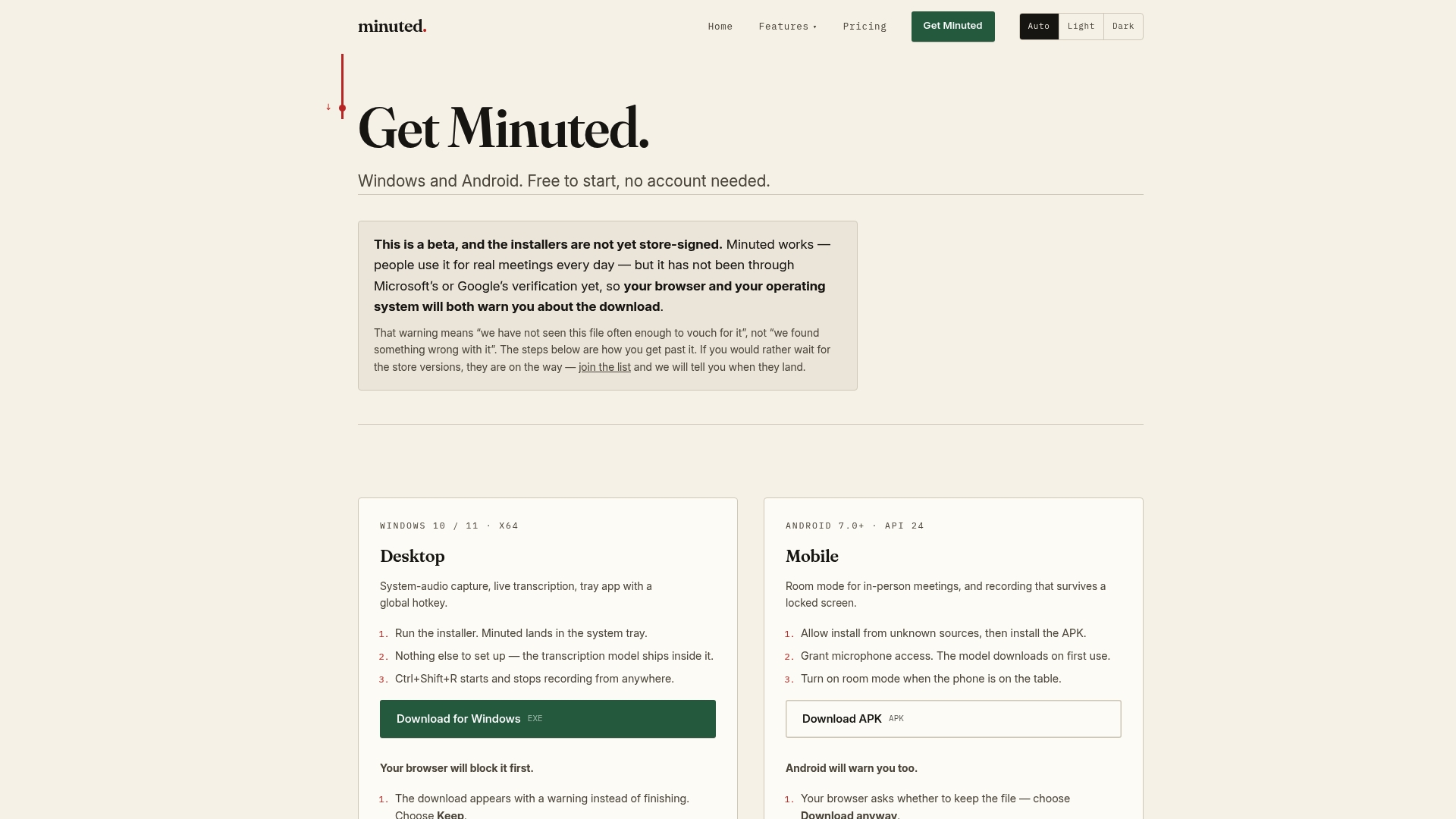
Getting started costs nothing: the local mode is free and unlimited, so you can trial the transcription quality on your own huddles before deciding whether the paid plans for extra cloud minutes and integrations are worth it. If speaker labelling, offline reliability, or integrations with tools like Notion and monday.com matter to your workflow, the feature breakdown covers exactly what's included. Download it, run it against your next sensitive huddle, and see whether the transcript holds up without ever leaving your device.
Sources
- Use AI to take huddle notes in Slack | Slack
- Meetstream
- How to Transcribe Slack Huddles | VidNotes blog
- HIPAA (U.S. Department of Health & Human Services)