
On-device transcription runs the speech recogniser directly on your phone, laptop, or dedicated device, converting spoken audio into text without sending it to a server. No audio leaves the hardware it was recorded on, so the workflow works without an internet connection and carries far fewer privacy risks than cloud transcription. For meeting notes specifically, Minuted has built its transcription and speaker labelling to run this way by default, with cloud features kept strictly optional.
TL;DR:
- On-device transcription offers lower latency, higher reliability, and better privacy by keeping raw audio on the device and avoiding network delays.
- Modern optimized models can now match cloud accuracy in clear audio conditions, reducing the traditional disadvantage of local transcription.
- Hardware acceleration, such as NPUs or GPUs, significantly enhances speed and makes local processing more consistent across recent devices.
- Privacy risks remain if transcript data is stored via backups, syncs, or exports, making careful management of cloud and device settings essential.
- Minuted's local transcription approach includes speaker labeling and integration with calendars and task apps, providing a complete offline meeting workflow.
Table of Contents
- On-device vs cloud transcription: the real trade-offs
- Privacy and data handling: what actually stays local
- Why local transcription feels faster and more consistent
- How accurate is on-device transcription, really?
- Hardware, languages and what your device needs
- Getting reliable transcripts: setup and troubleshooting
- Where Minuted fits into the on-device picture
- What's next for local speech recognition
- What the evidence actually supports
- Try Minuted for private, real-time meeting transcription
- Sources
On-device vs cloud transcription: the real trade-offs
Choosing between local and cloud speech-to-text comes down to five practical differences, and none of them are trivial once you're relying on the output for real work.
- Privacy: on-device processing keeps raw audio on the hardware; cloud transcription sends that audio to a third-party server, however briefly, which introduces a data handling question you have to trust someone else to answer correctly.
- Latency and reliability: local inference doesn't wait on a network round trip, so text appears with less delay and keeps working through patchy Wi-Fi or a dead signal in a basement conference room.
- Accuracy: cloud models historically had the edge because they could run larger ensembles, but optimised on-device models have closed much of that gap, particularly for clear, single-speaker or well-separated speech.
- Cost: local transcription is typically a one-time software cost or included free tier, whereas cloud APIs bill per minute of audio processed, which adds up fast for anyone running back-to-back meetings.
- Offline availability: only local processing works with no connection at all; cloud transcription simply fails or queues until a signal returns.
A journalist recording a sensitive interview or a lawyer transcribing a client call has an obvious reason to prefer local processing. A call centre analysing thousands of hours of audio for sentiment trends might reasonably prefer cloud infrastructure, where scale matters more than per-call privacy. Many teams end up running a hybrid: local transcription for the live capture, with an optional cloud pass afterwards for polishing or summarisation, which is roughly how Minuted's own architecture is structured.
Privacy and data handling: what actually stays local
"Audio never leaves the device" is a specific claim, and it's worth checking exactly what it does and doesn't cover. It means the raw waveform of your meeting is never uploaded or streamed anywhere for transcription. It doesn't automatically mean nothing about that meeting is ever stored elsewhere, since transcripts, summaries, or calendar metadata can still sync to cloud services if you've enabled integrations for task management or calendar syncing.
The more realistic leak points are unglamorous: automatic device backups that scoop up app data, crash reports that snapshot recent logs, and clipboard history if you've copied a transcript excerpt somewhere else. None of these involve the transcription engine itself, but they can undermine the privacy guarantee if left unchecked.
Before trusting a tool with confidential meetings, check:
- Whether the app's cloud features are opt-in or opt-on-by-default.
- Whether transcripts sync to any linked calendar or task app, and what that app's own retention policy says.
- Whether device-level backups (iCloud, Google Backup) include app data by default.
- Whether exported files (PDF, text) are saved somewhere synced automatically.
Minuted's own privacy explainer breaks down exactly this distinction between local processing and optional cloud write-ups.
Pro Tip: Turn off automatic cloud backup for any transcription app specifically, rather than relying on the app's own privacy settings alone. That way, even a misconfigured integration can't quietly sync a sensitive transcript.
Why local transcription feels faster and more consistent
Word-emission latency, the delay between someone speaking and the word appearing on screen, is the single biggest factor in whether live transcription feels usable during a meeting. Cloud transcription adds a network round trip on top of processing time, and that round trip varies with signal strength, server load, and distance to the nearest data centre. Local transcription only has to account for on-device processing, which is far more predictable.
Hardware acceleration is what makes that processing fast enough to feel instant. Modern devices increasingly ship with neural processing units (NPUs) or GPUs alongside the CPU, and speech recognition frameworks are built to detect and use whichever accelerator is available, falling back to the CPU only when necessary. Microsoft's Windows AI documentation notes that hardware-accelerated inference substantially cuts latency and system load compared with CPU-only processing, which is why device choice genuinely affects how a transcription app performs, not just whether it runs at all.

Cloud still has a place. Very large ensemble models that would never fit on a phone, or centralised enterprise pipelines analysing thousands of recordings for compliance, are scenarios where server-side scale beats what a single device can do. For a one-to-one client call or a team stand-up, though, local processing is usually the faster and more reliable option.
How accurate is on-device transcription, really?
Optimised on-device models can now match cloud-grade accuracy on clean audio, which quietly overturns the old assumption that "offline" meant "worse." Independent benchmark testing of Whisper Large v3 Turbo variants reports word error rates as low as roughly 2.2% in controlled conditions, a figure that puts well-optimised local models in the same range as many cloud services for straightforward speech.
Benchmark note: a WER of ~2.2% means roughly 2 words in every 100 are transcribed incorrectly under ideal test conditions. Real meetings with overlapping speakers, accents, and background noise will typically push that figure higher for any engine, local or cloud.
Streaming transcription introduces its own wrinkle: the engine has to emit a "best guess" word in real time, then sometimes revise it once more context arrives. Well-designed decoders minimise how often visible text gets rewritten mid-sentence, which matters a lot for readability during a live meeting.
Common error modes include mishearing jargon or proper nouns, dropping punctuation in fast speech, and confusing similar-sounding names. Custom vocabularies (letting the engine know your company's product names in advance) and a punctuation pass after transcription both meaningfully reduce these errors.
Hardware, languages and what your device needs
Getting reliable on-device performance starts with checking whether your hardware has an accelerator worth using.
- Processor: an NPU or dedicated GPU delivers noticeably lower latency than a CPU-only fallback, though most modern laptops and phones from the last few years handle transcription adequately either way.
- Operating system: recent OS versions matter because speech frameworks (Apple's on-device SpeechAnalyzer is one example) are tied to specific OS releases and manage language model downloads automatically.
- Language assets: offline language packs typically need to be downloaded once in advance; check this before a meeting in a language you don't use daily.
- Storage: compressed transcription models generally sit under 1 to 2GB thanks to techniques like weight palettization, which keeps them light enough for routine over-the-air updates.
- Battery: continuous local transcription during a long meeting draws more power than idle recording, so a charger nearby is sensible for sessions running past an hour or two.
Getting reliable transcripts: setup and troubleshooting
A few minutes of setup prevents most of the transcription problems people blame on the software.
- Grant microphone permission explicitly, then check the app has selected the correct input device, not a disconnected headset or a built-in laptop mic across the room.
- Download the language pack for the meeting's primary language before you start, especially if you're travelling or switching languages.
- Set power settings to prevent the device sleeping mid-recording, particularly on laptops with aggressive battery-saving defaults.
- Position the microphone closer to speakers than to noise sources like laptop fans or air conditioning vents.
For long sessions, some apps split recordings into chunks automatically; check how your tool handles file continuity so a two-hour workshop doesn't fragment into disconnected pieces. Speaker labelling works best when participants speak individually rather than talking over one another, so a light hand gesture or verbal cue ("go ahead, Sarah") helps more than you'd expect.
Pro Tip: Push-to-talk or a system hotkey to start and stop recording, a pattern common in open-source local transcription tools, avoids capturing side conversations before a meeting officially starts.
Where Minuted fits into the on-device picture
Minuted was built specifically around the trade-offs above: real-time local transcription, speaker labelling, and calendar and task integrations, all running without requiring an internet connection for the core transcription itself.
- Local processing by default, with optional cloud AI write-ups for teams who want a polished summary layer on top.
- Speaker labels applied automatically during the meeting, not as a separate post-processing step.
- Calendar sync (Google, Outlook) and task syncing (Todoist, monday.com, Notion) that turns a raw transcript into assigned action items.
- Click-to-play transcripts, so reviewing a decision means jumping straight to the moment it was said.
What's next for local speech recognition
Model compression is the trend doing the most practical work right now. Techniques like mixed-bit palettization are shrinking transformer-based models without meaningfully raising word error rates, which means the gap between what fits on a phone and what used to require a server rack keeps narrowing every year.

Neural processing units are becoming standard rather than premium. As more laptops and phones ship with a dedicated NPU as default hardware, the latency advantage of local transcription over cloud will widen rather than shrink, since accelerator-aware frameworks automatically favour whichever chip handles inference fastest.
Platform vendors are also lowering the barrier for developers. Frameworks like Apple's SpeechAnalyzer are making it easier to build streaming transcription that runs entirely on-device without custom model engineering, which should mean more apps offering genuine offline capability rather than a thin cloud wrapper with an "offline mode" label bolted on.
Expect personalisation to matter more too: models that adapt to a specific speaker's voice or a team's recurring vocabulary over time, without that adaptation data ever leaving the device it learned from. That's a meaningfully different privacy proposition to today's one-size-fits-all local models, and it's likely where meeting transcription tools focus their next real improvements.
What the evidence actually supports
The conventional wisdom that offline transcription means a worse product has aged badly. The benchmark evidence on optimised Whisper variants shows local models closing in on cloud-grade accuracy for clear speech, and the latency advantage of skipping a network round trip is not a marginal one, it's the difference between text that feels live and text that lags behind the conversation.
Where most guidance falls short is treating "on-device" as a single guarantee rather than a spectrum. An app that processes audio locally but syncs transcripts to an unmanaged cloud calendar isn't offering the same privacy posture as one that keeps the entire pipeline local. Readers should prioritise checking exactly where their data goes after transcription, not just where the audio itself is processed, because that's where most privacy claims quietly fall apart.
If you take one thing from this: test your own hardware's real-world latency and accuracy before trusting any tool with a meeting that matters, because benchmark figures describe controlled conditions, not your conference room with the air conditioning running.
— James
Try Minuted for private, real-time meeting transcription
Minuted gives you what most cloud transcription tools can't: a complete meeting record that never has to leave your device unless you choose otherwise. Recording, transcribing, and speaker labelling all happen locally in real time, so a dropped Wi-Fi connection or a policy against cloud tools for client calls doesn't stop you getting usable minutes.
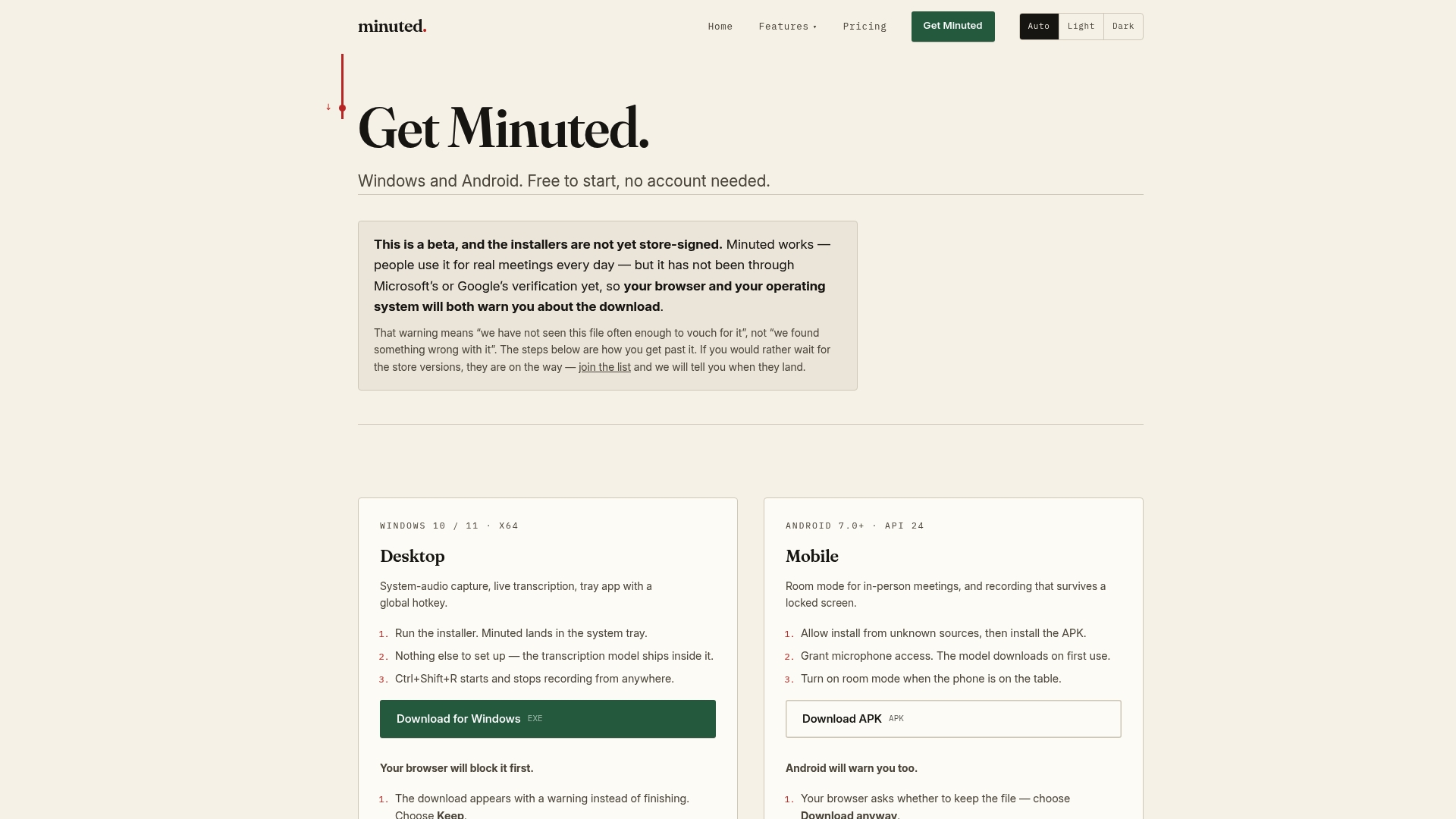
If integrations matter to your workflow, Minuted syncs with Google and Outlook calendars and pushes action items straight into Todoist, monday.com, or Notion, so the transcript becomes assigned work rather than a file nobody reopens. Freelancers and project managers running back-to-back client calls get the same local-first transcription with click-to-play playback for reviewing exact decisions later.
Download Minuted and run your next meeting through it locally, free, with no minute limits on the on-device mode: get started with Minuted.
Sources
- Speech recognition - Windows AI APIs (Microsoft Learn)
- WhisperKit: On-device real-time ASR with billion-scale transformers (arXiv)