
For most professionals, the best approach is a dedicated on-device meeting app that records, transcribes, and labels speakers without sending audio to a server. It works offline, protects sensitive discussions, and slots into a calendar and task workflow automatically. Apple Notes or Voice Memos suit ad hoc capture, but for recurring or confidential meetings, an app like Minuted covers the gap. Cloud transcription still earns its place for large, multi-hour recordings where teams share raw audio broadly.
TL;DR:
- On-device transcription apps like Minuted protect sensitive data by processing audio locally and automatically label speakers and link to calendars, ideal for confidential or recurring meetings.
- Apple's Notes app offers free live transcription for solo or small meetings, but lacks speaker labels and requires manual tidying after recording.
- Cloud-based transcription handles longer recordings and multi-user collaboration more efficiently but involves privacy trade-offs and reliance on internet connectivity.
- Proper physical setup, such as central microphone placement and reducing background noise, significantly improves transcription accuracy during meetings.
- Transcription success depends more on workflow and privacy considerations than on app accuracy alone, with local apps streamlining task assignment and follow-up.
Table of Contents
- Which iPhone meeting transcription method actually fits your work?
- How do you record and transcribe a meeting on iPhone with Apple's own apps?
- Why on-device transcription changes how teams handle meetings
- Practical tips to improve transcript accuracy during meetings
- Turning transcripts into minutes, tasks, and shared records
- Why won't your iPhone transcribe a meeting, and how do you fix it?
- What professionals get wrong about meeting transcription
- Minuted: privacy-first transcription that turns into minutes automatically
- Sources
- FAQ
Which iPhone meeting transcription method actually fits your work?
Three realistic paths exist for iPhone meeting transcription, and each solves a different problem rather than one being objectively "better".
Apple's built-in tools (Notes and Voice Memos) cost nothing and require no setup. They work well for a quick voice memo or a solo brainstorm, but Notes' live transcription can struggle once more than two people talk over each other, according to one hands-on report on Apple Notes' live transcription. It also has no speaker labelling and no calendar link, so every transcript needs manual tidying afterwards.
On-device specialised apps, including Minuted, sit in the middle. They process audio locally, which means the recording never has to leave the phone, and they add features built-in tools skip entirely: named speakers, calendar attachment, and export straight to a task manager. This is the practical choice for anyone running the same type of meeting week after week, whether that's a client call, a stand-up, or a board review where confidentiality matters.
Cloud-assisted transcription trades some privacy for raw processing power. It can be the right call for very long recordings (multi-hour workshops or conference sessions) where a phone's local processing would take considerably longer, or where several people need to collaborate on the same transcript in real time from different locations.
A short decision checklist helps here:
- Privacy sensitivity: If the meeting covers legal, financial, or HR matters, keep processing on-device.
- Integration needs: If you routinely turn action items into tasks, pick a tool with calendar and task-app links rather than copying manually.
- Meeting length: Recordings over roughly two hours may benefit from cloud processing speed, depending on the device.
- Connectivity: If you meet in basements, warehouses, or client sites with patchy signal, on-device transcription keeps working regardless.
A sensible pattern for most teams: start with Notes for a one-off catch-up, but switch to a dedicated on-device app the moment a meeting becomes recurring or touches anything you wouldn't want stored on someone else's server.
How do you record and transcribe a meeting on iPhone with Apple's own apps?
Apple Notes and Voice Memos both handle basic transcription, and knowing the exact steps saves you from hunting through menus mid-meeting.
In Apple Notes:
- Open Notes and create a new note, or tap into an existing one.
- Tap the waveform icon in the toolbar above the keyboard to start recording audio.
- Speak normally. Notes transcribes live as the recording continues, and you'll see text appear in the note itself.
- Tap the stop button when the meeting ends. The transcript stays attached to that note and remains searchable afterwards.
- To review it later, open the note and tap the recording; the transcript scrolls alongside playback, letting you jump to any point in the audio.
Apple's own guide to recording and transcribing in Notes confirms this only works on supported iPhone models running a compatible iOS version, and the transcription language must match a supported language set on the device.
In Voice Memos:
Open the app, tap the red record button, and speak. Voice Memos captures audio reliably even when the app sits in the background, which suits meetings where you want to keep Notes or a calendar open instead. Once you stop recording, tap the memo, then look for the transcript option beneath the waveform; supported devices generate a text version automatically, though it appears after recording rather than live.
One practical figure worth knowing: Apple documents specific device and language requirements for this feature, so an older iPhone or an unsupported language setting is the single most common reason transcription doesn't appear at all.
Pro Tip: Lock your iPhone's orientation and disable Auto-Lock before a long meeting. A locked screen mid-recording can interrupt live transcription in Notes, even though Voice Memos usually keeps running.
Battery drain is worth planning for too. Live transcription taxes the processor more than a plain audio recording, so longer meetings can noticeably dent your battery if you start below half charge.
Why on-device transcription changes how teams handle meetings
On-device processing solves a problem built-in apps and most cloud tools handle differently: what happens to the recording after the meeting ends. When transcription happens locally, the audio never leaves the phone, which removes a category of privacy questions entirely for confidential client work, HR conversations, or board discussions. It also means the tool keeps working in a basement conference room, a client site with no signal, or on a flight, situations where cloud-dependent apps simply stall.
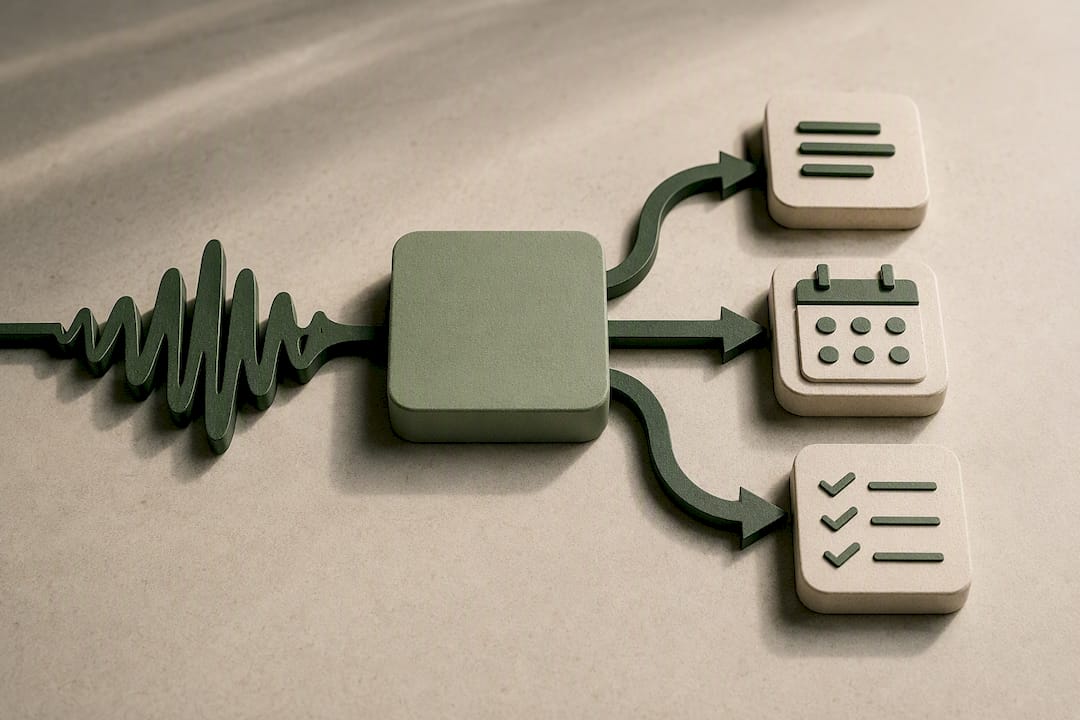
Comparative testing of iPhone transcription tools consistently points to three real differentiators: accuracy, workflow integrations, and privacy handling. Speaker labelling and calendar linking address the second point directly. Instead of scrolling back through a wall of unattributed text trying to remember who said what, a labelled transcript lets you assign action items the moment the meeting ends. Attaching that transcript to the calendar event it came from means nobody has to hunt through Messages or email three days later asking "did anyone write that down?"
The trade-off is worth stating plainly: cloud-based models sometimes deliver marginally better raw accuracy on very noisy or heavily accented audio, simply because they draw on larger processing resources. For most office and meeting-room conditions, that gap is small enough that the privacy and offline reliability of on-device processing outweigh it. Minuted's approach, which processes audio locally while still offering speaker labelling and calendar and task integrations, reflects where the wider market is heading: professionals want the convenience of automated minutes without the audio ever sitting on a third-party server.
A few practical benefits show up repeatedly once teams switch to this kind of workflow:
- Faster follow-up: Automatically linking a transcript to the calendar event it belongs to removes a manual filing step every time.
- Accountability: Named speakers make it obvious who committed to what, which cuts down on "I don't remember agreeing to that" disputes.
- Continuity during outages: A dropped Wi-Fi connection or an underground meeting room doesn't interrupt an on-device recording the way it can a cloud-dependent one.
- Reduced exposure: Sensitive discussions, such as compensation reviews or legal matters, never touch external infrastructure when processing stays local.
The real return on investment isn't the transcript itself. It's how much manual admin disappears once that transcript reaches the right calendar entry or task list without anyone copying and pasting.
Practical tips to improve transcript accuracy during meetings
Accuracy problems usually trace back to the room, not the app. Fixing the physical setup solves more transcription issues than switching tools ever does.
Room and device placement:
- Place the phone centrally on the table rather than near one end, so it captures every voice at a similar volume.
- For groups larger than four or five, a small external conference microphone paired over Bluetooth outperforms a phone's built-in mic every time.
- Reduce background noise sources: close windows near traffic, switch off a noisy air conditioning unit if the meeting allows it.
Meeting room acoustics measurably affect recording quality, and small fixes like softening hard surfaces with soft furnishings or rugs cut down on echo that confuses transcription software.
Participant technique:
Ask each person to state their name once at the start. This single habit dramatically improves speaker diarisation accuracy, because most transcription models use that first identification to distinguish voices for the rest of the recording. Encourage people to avoid talking over each other, not out of politeness alone, but because overlapping speech is the single biggest cause of garbled transcripts.
Technical settings:
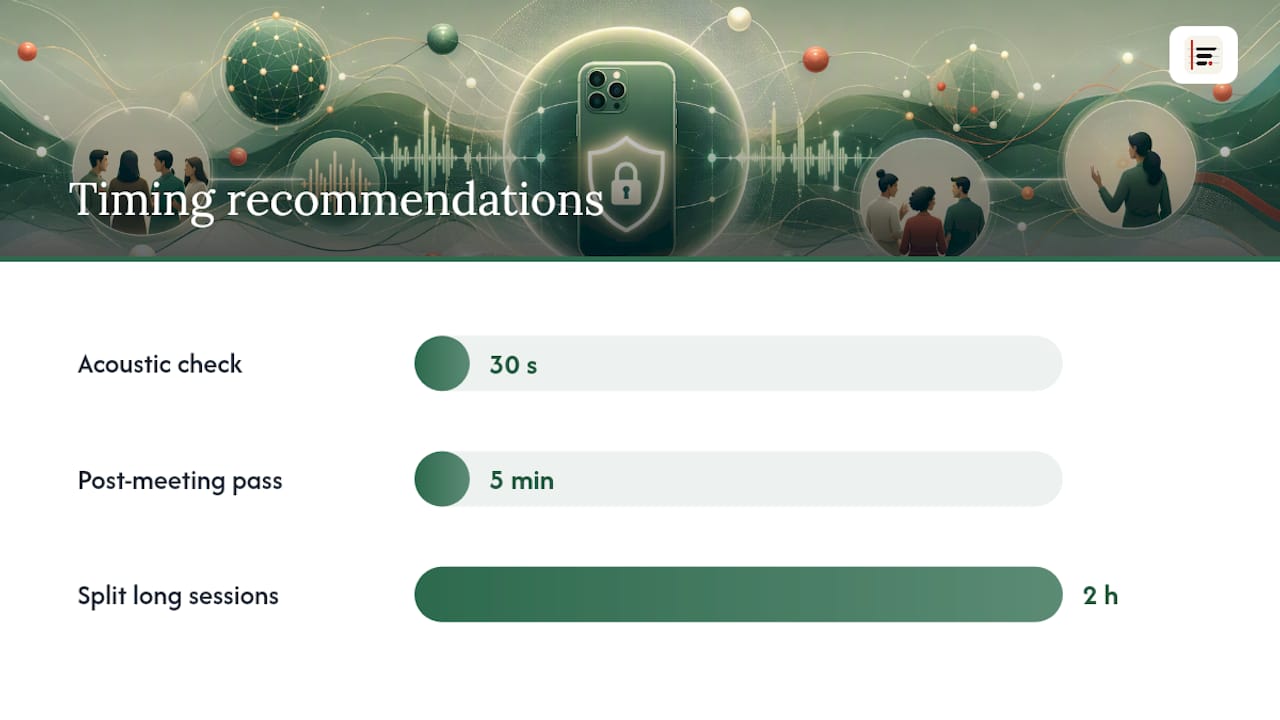
Stick to a standard recording format rather than adjusting compression settings, since most transcription tools are tuned for default audio quality. For sessions running beyond two hours, split the recording into two files where possible; very long single files sometimes strain processing on older devices.
Editing workflow:
Once the meeting ends, do a quick five-minute pass over the transcript while the discussion is still fresh. Correct obvious misheard names or jargon, assign action items to the right person, and store the corrected version as the single authoritative record rather than leaving multiple drafts floating between people.
Pro Tip: If your team meets in the same room regularly, do a one-time acoustic check: record 30 seconds of silence and a few sentences from each seating position. It reveals dead zones before they cost you a transcript.
Turning transcripts into minutes, tasks, and shared records
A transcript only earns its keep once it becomes something the team can act on. Getting from raw text to usable minutes takes a handful of deliberate steps.
- Choose the right export format for the job. Plain text suits quick internal sharing. SRT works when you need timestamps, useful for training material or accessibility. PDF is the right call for formal minutes that need to look finished and stay unaltered.
- Pull action items into your task tool. Whether your team uses Notion, Todoist, or monday.com, copy or sync each decision and owner into a task with a due date rather than leaving it buried in a paragraph of transcript text. Some tools support this directly by syncing extracted tasks into these platforms without manual re-typing.
- Set sharing permissions deliberately. Encrypt exports containing sensitive material and restrict access to people who attended the meeting or genuinely need the outcome, rather than defaulting to a shared team folder.
- Follow a short minutes template. Date, attendees, three to five key decisions, and a list of owned action items with deadlines covers most meetings without turning into a transcript-length document.
- Set a follow-up cadence. A brief check the following week on whether action items moved forward catches the ones that quietly stalled.
A short, consistent structure like this makes the difference between a transcript nobody rereads and a minutes system the team actually relies on. Teams building this into their broader task-tracking habits often find it pairs naturally with structured tracking approaches used for other administrative workflows, where turning raw information into a trackable list is the whole point.
Why won't your iPhone transcribe a meeting, and how do you fix it?
Most transcription failures come down to a handful of repeatable causes, and working through them in order usually finds the fault within a minute or two.
- Check permissions first. Notes and Voice Memos both need microphone access enabled in Settings; a recent iOS update sometimes resets this.
- Confirm your language setting. Live transcription in Notes only works with supported languages set correctly on the device; a mismatched region or language setting is a common, easily missed cause.
- Verify device and iOS compatibility. Older iPhone models and outdated iOS versions may not support live transcription at all, even though they can still record audio.
- Listen back for audio quality issues. Background noise, a damaged microphone, or several people talking simultaneously all degrade transcription accuracy noticeably.
- Switch tools if built-in options keep failing. An on-device specialised app or an external recorder can succeed where Notes struggles, particularly in group settings.
- Watch battery and background behaviour. Low Power Mode can restrict background recording, and a locked screen sometimes pauses live transcription in Notes even when Voice Memos keeps recording.
What professionals get wrong about meeting transcription
Most advice on this topic treats transcription as a technology problem: pick the app with the highest accuracy score and you're set. That misses the actual bottleneck, which is everything that happens after the recording stops. A perfectly accurate transcript that sits unread in a Notes app achieves nothing.
The more useful question isn't "which app transcribes best" but "which workflow gets action items into the right hands with the least manual effort". That's where on-device tools with calendar and task integrations earn their place, not because they're marginally more accurate than a cloud alternative, but because they remove the copying, pasting, and re-typing that kills follow-through on most meeting outcomes.
Privacy gets treated as a compliance checkbox rather than a genuine operational advantage. In practice, knowing that sensitive audio never leaves the device changes how openly people speak in a meeting, which changes what actually gets said and decided. That's not a footnote. It's the difference between a transcript that reflects what really happened and one shaped by people holding back because they're unsure where the recording ends up.
— James
Minuted: privacy-first transcription that turns into minutes automatically
Minuted is the practical alternative to juggling Voice Memos, a notes app, and a separate task tool for every meeting. Some apps record and transcribe on-device, so audio never leaves the phone, and label speakers automatically rather than leaving you to guess who said what afterwards.
Where Minuted earns its place is the step after recording. Some apps sync transcripts with Google and Outlook calendars, so a meeting note attaches to the event it belongs to without manual filing, and action items sync directly into Todoist, monday.com, or Notion. That closes the gap between "we discussed it" and "someone's actually doing it", without anyone retyping a single line. Some apps offer a free plan that runs entirely in local mode with unlimited on-device transcription, allowing users to test the privacy-first workflow before deciding whether cloud minutes or advanced integrations are worth a paid plan. Compare how the on-device architecture protects your recordings, check the full feature set, or download Minuted and record your next meeting the way it's meant to work: privately, automatically, and with the minutes ready before you've left the room.
Sources
- Record and transcribe audio in Notes on iPhone - Apple Support
- I Tried Apple Notes Live Transcription and Have Mixed Feelings
- Meeting Room Acoustics: Targets, Fixes, and Fast Diagnostics
FAQ
How do you transcribe a meeting using an iPhone?
Open Apple Notes, tap the waveform icon to start recording, and the transcript appears live in the note as you speak, according to Apple's official guide. For recurring or confidential meetings, an on-device app such as Minuted adds speaker labels and calendar syncing that Notes doesn't offer.
Can you transcribe a phone call on an iPhone?
Apple's built-in tools don't transcribe live phone calls directly. Most professionals use a separate recording device or a specialised app for calls, then run that recording through a transcription tool afterwards.
Does Apple have built-in transcription?
Yes. Both Notes and Voice Memos offer transcription on supported iPhone models and iOS versions, with Notes generating a live transcript as you record, per Apple's support documentation. It works well for solo or two-person capture but lacks speaker labelling for larger meetings.
Why won't my iPhone transcribe audio?
The most common causes are an unsupported language setting, an older device or iOS version, or microphone permissions that got reset after an update. Poor audio quality, such as overlapping speakers or heavy background noise, also prevents accurate transcription even when the feature is working correctly.