
An interactive transcript is a synchronised, clickable text version of a video or audio recording: click a word or line, and the player jumps straight to that moment, while the current line highlights automatically as playback continues. The core benefit is navigation without scrubbing, plus far better accessibility for anyone who cannot or would rather not rely on audio alone. The sections below cover the formats, the build process, and where a specialist tool beats a do-it-yourself script.
TL;DR:
- Interactive transcripts use WebVTT files and cuechange events to enable click-to-seek, auto-highlighting, and auto-scrolling for easier navigation.
- WebVTT is the standard format, but simpler HTML with data attributes can be used for basic needs; compatibility varies across players.
- They benefit accessibility by aiding deaf and hard-of-hearing users, while also improving search indexing, language learning, and user experience for non-native speakers.
- Building effective transcripts requires accurate human-reviewed transcriptions, proper embedding, and thorough testing for keyboard, screen reader, and mobile accessibility.
- For meeting recordings, specialized tools like Minuted are preferable as they focus on speaker attribution and action tracking rather than click-based navigation.
Table of Contents
- How interactive transcripts work: the sync and UX model
- Transcript formats: blocks, paragraphs, and WebVTT
- Why interactive transcripts matter for accessibility and reach
- How to build and embed an interactive transcript
- Design and accessibility checks worth running
- Specialist meeting transcription or a DIY VTT build?
- The gap between accessibility theory and meeting reality
- Turn meeting transcripts into minutes that write themselves
- Sources
How interactive transcripts work: the sync and UX model
Every interactive transcript depends on timing data attached to text. In browser-based video, that usually means the HTML <track> element pointing to a WebVTT file, a plain-text format that pairs blocks of dialogue with start and end timestamps. The browser's native TextTrack API reads those cues and fires a cuechange event every time playback crosses a cue boundary, which is what a transcript widget listens for to know which line to highlight.
The mechanics break down into three linked behaviours:
- Click-to-seek: clicking a transcript line or word sets the player's
currentTimeto that cue's start value. - Auto-highlighting: as
cuechangefires, the active cue gets a visual style (bold, background colour, underline) so readers can follow along visually. - Auto-scroll: the transcript panel scrolls to keep the highlighted line in view, particularly important on long recordings.
Developer libraries such as Transcript Tracer wrap these primitives into a ready-made component, handling WebVTT parsing, cue mapping, and scroll behaviour so teams do not have to write the sync logic from scratch. Some newer tools go further: ElevenLabs' transcript viewer components expose functions like seekToWord() and onTimeUpdate for word-level rather than line-level precision, useful where exact phrasing matters more than paragraph context.
Transcript formats: blocks, paragraphs, and WebVTT
Two presentation styles dominate, and the choice affects readability more than it affects the underlying code. Timestamped block transcripts show short, discrete chunks of text, each tagged with a start time, mirroring how captions display on screen. Paragraph-style transcripts group dialogue into flowing prose, better suited to long-form talks or interviews where readers want to skim for content rather than track every phrase.
Format considerations to weigh before building:
- WebVTT is the de facto standard: plain text, human-readable, natively supported by the
<track>element in every modern browser. - A simpler alternative uses plain HTML with
data-start/data-endattributes on each paragraph, skipping WebVTT parsing entirely for teams that already control the markup. - Live streams complicate synchronisation because captions arrive in real time with no fixed file to pre-process; on-demand video is far easier, since the whole VTT file exists before anyone presses play.
- Compatibility varies by player: some frameworks expect a single VTT track, others accept JSON cue arrays.
Wikipedia's overview of interactive transcript types is a reasonable starting point for background, though the WebVTT specification itself remains the authoritative reference for formatting edge cases.
Why interactive transcripts matter for accessibility and reach
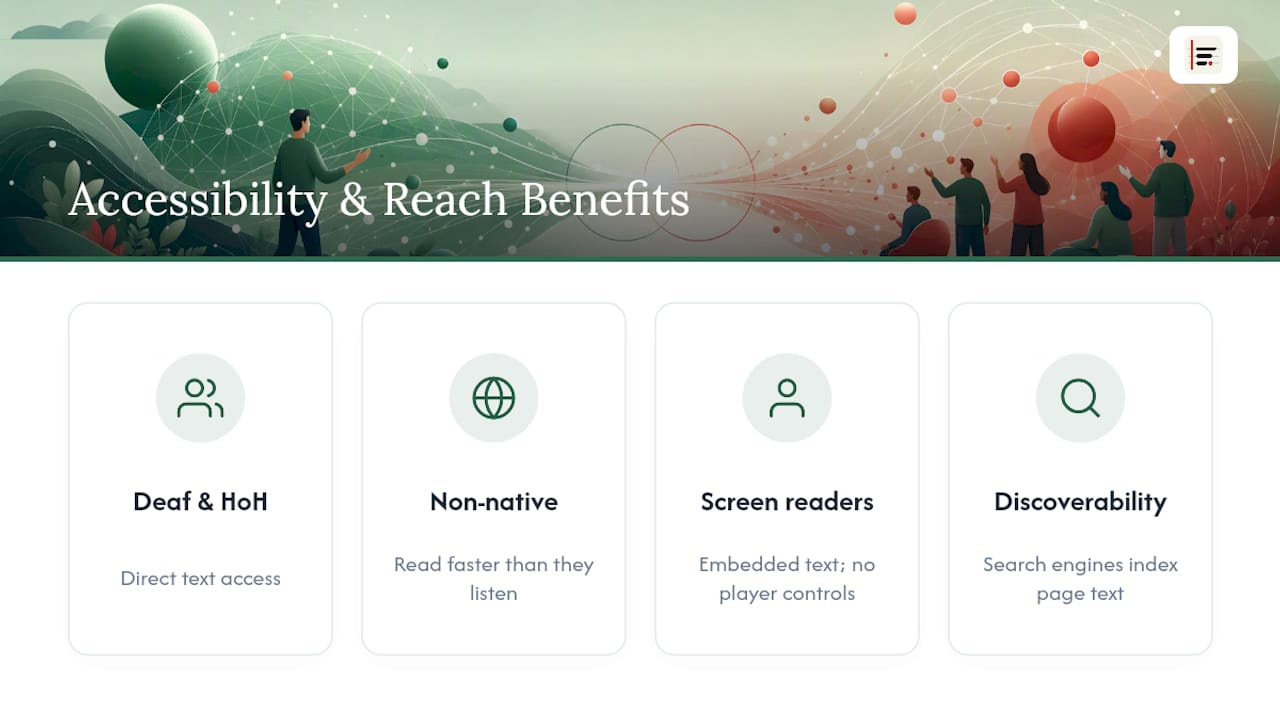
Deaf and hard-of-hearing viewers get the most obvious benefit, but the reach extends well past that group. Non-native speakers often read faster than they listen, and a clickable transcript lets them re-check a phrase without losing their place in the audio. Screen-reader users benefit too, since a transcript embedded in the page is just text: no player controls to navigate, no audio to parse.
Navigation improves for everyone. Instead of dragging a scrub bar and guessing, viewers search the transcript for a keyword and jump straight to that sentence, which shortens the distance between "I need that one detail" and actually finding it.
Why this matters for search: the W3C notes that transcript text present in the page HTML improves discoverability, because search engines index text, not audio or video frames. A transcript is often the only way a video's content becomes searchable at all.
Language learners also lean on interactive transcripts to read and listen simultaneously, and anyone on a slow connection or in a noisy environment gets a text fallback that works without audio. Some academic research on synchronised transcripts in learning contexts points to comprehension and retention gains when learners can follow text alongside audio, though the evidence should be read as suggestive rather than conclusive given the study sample sizes involved.
How to build and embed an interactive transcript
Building one is a five-step process, whether you are doing it for a single video or standardising it across a media library.
- Get an accurate transcript. Auto-transcription tools produce a rough draft fast, but always have a human pass to fix misheard names, technical terms, and punctuation before publishing.
- Export as WebVTT. Most transcription and captioning tools export directly to
.vtt. Check that timestamps line up with the actual media, particularly around edits or trimmed sections. - Embed the track. Add a
<track kind="captions" src="transcript.vtt">element inside the<video>tag, or build inline transcript HTML usingdata-startanddata-endattributes on each block if you are not using the native track element. - Wire up interactivity. Use an existing library such as Transcript Tracer or a player's built-in transcript manager, or write concise custom JavaScript that listens for
cuechangeand updatescurrentTimeon click. University of Michigan's interactive transcript guidance walks through exactly this workflow for lecture capture. - Test thoroughly. Check keyboard navigation (can a user tab through transcript lines?), focus management, screen-reader announcement of the active cue, and how the transcript panel behaves on a small mobile screen.
Pro Tip: Auto-generated timestamps drift more often than developers expect, especially after re-encoding. Build in a small timeOffset and an alignment fuzziness margin rather than assuming millisecond precision, and test across MP4, WebM, HLS, and DASH if your platform serves more than one format.
Design and accessibility checks worth running
A transcript that only exists inside a JavaScript-rendered widget defeats much of its own purpose. Keep the text in the page's HTML wherever possible, so it survives even if a script fails to load, and remains readable to screen readers and search crawlers alike.
- Include speaker labels and brief visual descriptions where the recording needs them, particularly for lectures, interviews, or demos with on-screen action.
- Add keyboard focus states and ARIA attributes (
aria-current,role="button") so keyboard-only users can navigate the transcript exactly as mouse users do. - Keep clickable areas generously sized. A cue that is only clickable on a three-word span is a fiddly target on any device, let alone mobile.
- On phones, place the transcript below the player rather than in a draggable floating window. Complex resizable panels rarely survive small-screen testing.
- Put a visible link to the transcript near the player itself, not buried in a settings menu.
| Check | Why it matters |
|---|---|
| Transcript text in page HTML | Survives script failure; indexable by search engines |
| Speaker labels included | Needed for multi-voice recordings, per W3C guidance |
| Keyboard + ARIA support | Required for non-mouse navigation |
| Mobile placement below player | Avoids fiddly draggable UI on small screens |
| Visible transcript link | Ensures discoverability without a settings hunt |
Specialist meeting transcription or a DIY VTT build?
The job-to-be-done decides this, not preference. General video content (lectures, product demos, marketing clips) suits the VTT-plus-JavaScript approach outlined above: it is lightweight, standards-based, and needs no subscription. Meeting minutes are a different job entirely. You need accurate speaker labelling across several voices, real-time capture as the conversation happens, and a route from raw transcript to structured action items, not just a searchable text block.
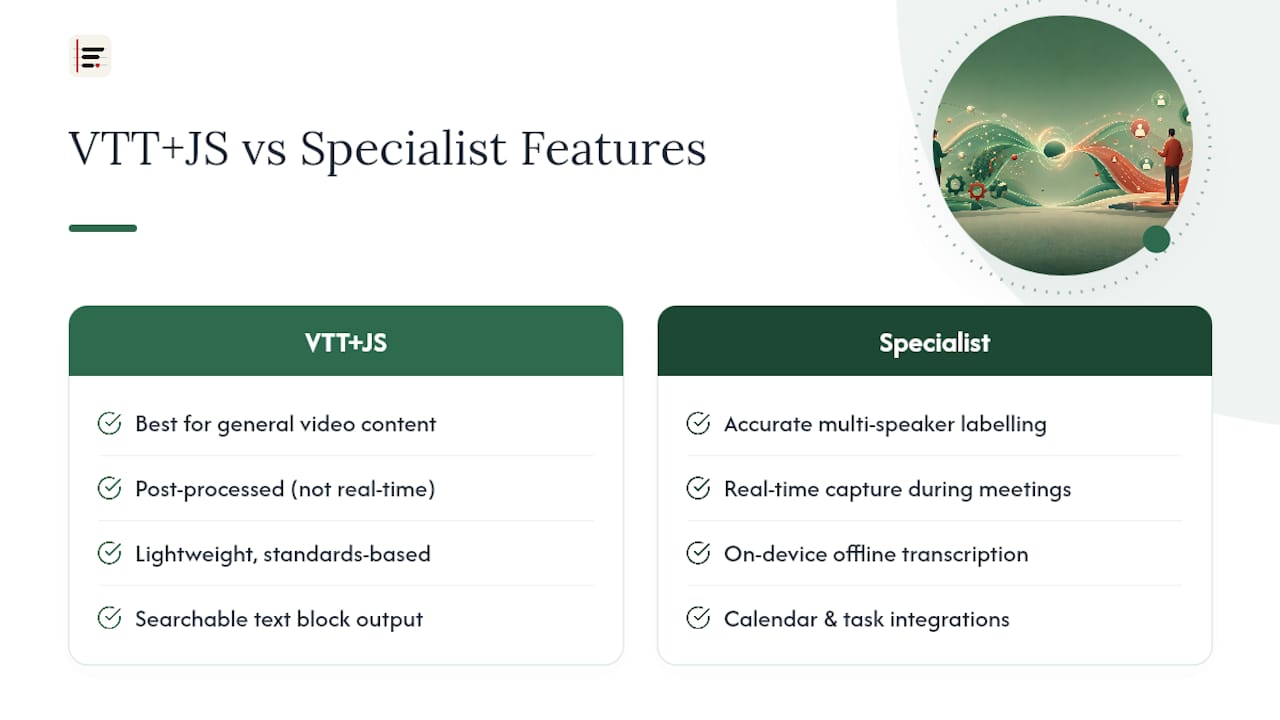
That is the gap a product like Minuted is built for: on-device transcription that works offline, automatic speaker labelling, and calendar and task integrations that turn a transcript into assigned actions. If your need is real-time capture with compliant local processing rather than a public-facing video transcript, a specialist tool earns its place.
The gap between accessibility theory and meeting reality
Most interactive transcript guidance, W3C's included, is written with public video content in mind: lectures, webinars, marketing clips. That advice is sound, but it quietly assumes a single speaker, a finished recording, and time to polish captions before publishing. None of that holds true in a live meeting.
The overlooked point is that meeting transcripts and video transcripts solve different problems wearing the same interface. A video transcript exists so someone can find a quote later. A meeting transcript exists so someone can prove a decision was made, by whom, and what happens next. Treating both the same way, building a generic VTT pipeline for internal meetings, gets you a searchable wall of text with no accountability built in.
My honest read: teams over-invest in building custom transcript tooling for meetings when the actual requirement is speaker attribution and action tracking, not click-to-seek precision. Get the fundamentals right first, accurate speaker labels and a reliable capture method, before worrying about highlight animations.
— James
Turn meeting transcripts into minutes that write themselves
Everything above covers building interactive transcripts for public video content, useful skills, but a different job from capturing what happened in a meeting. Minuted handles that second job directly: it records and transcribes audio on-device, labels each speaker automatically, and structures the result into clear minutes rather than a wall of undifferentiated text.
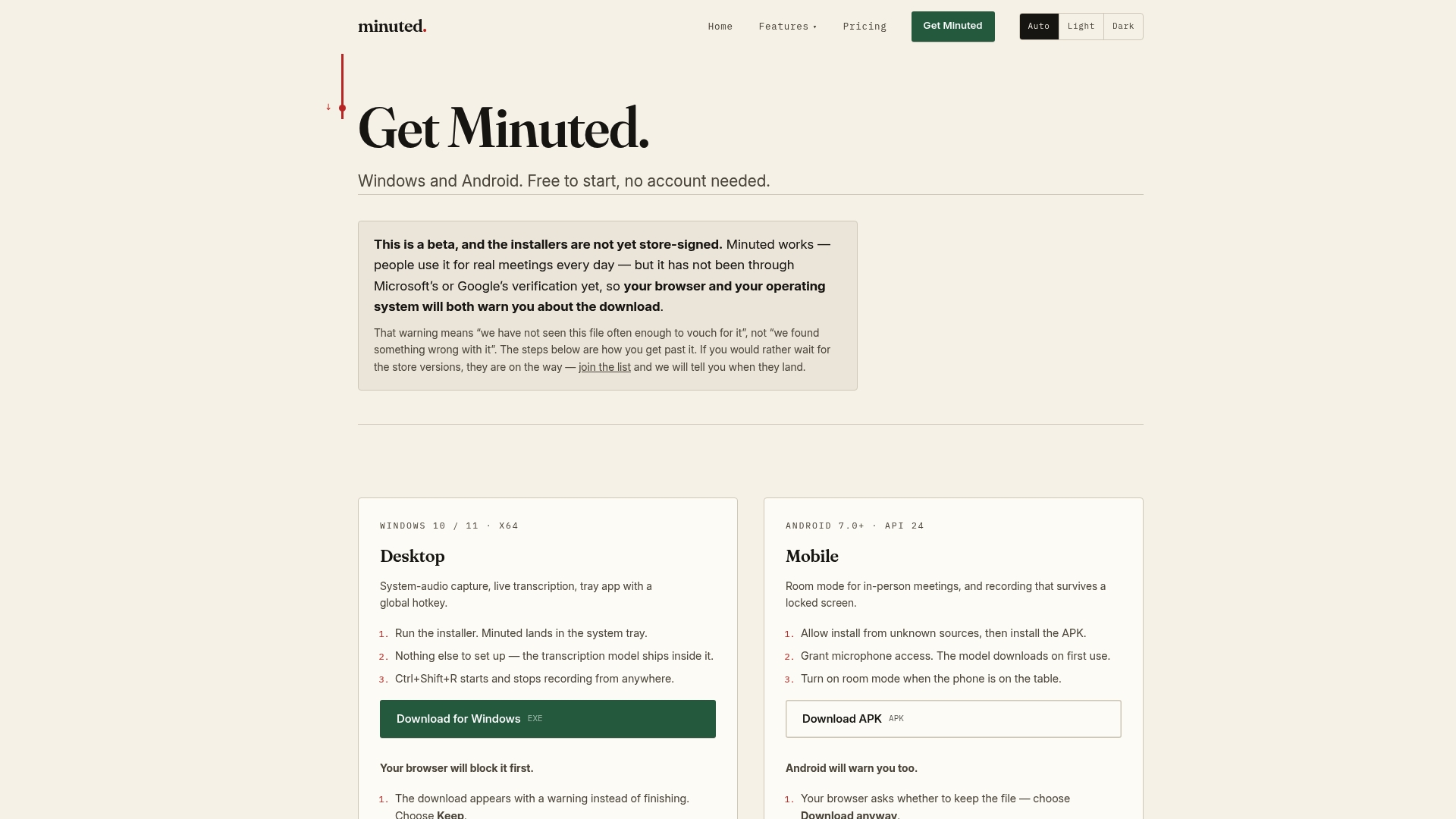
Because processing happens locally, some transcription tools work without an internet connection and ensure no audio ever leaves the device, a meaningful difference for teams handling sensitive discussions. It can sync with popular calendar and task management apps, so action items land where your team already tracks work instead of sitting in a transcript nobody revisits. Explore the full feature set or see exactly what leaves your device compared with other notetaking tools before deciding. If your next step is a face-to-face meeting rather than a video call, the in-person meeting notes use case shows how capture works in that setting. Ready to see it on your own meetings? Start with Minuted and check whether local mode covers your workflow before touching a paid tier.
Sources
For the accessibility rationale behind transcripts, the W3C's Web Accessibility Initiative page is the primary reference. For a practical build walkthrough, University of Michigan's teaching and learning guidance covers captions-to-VTT-to-HTML end to end. Developers wanting working code should look at Transcript Tracer on GitHub and the VidPly documentation for UI behaviour patterns, and Naomi Lennon's UX writing for a creator-economy angle on transcript-driven engagement.
- Transcripts | Web Accessibility Initiative (WAI) | W3C
- Transcript Tracer (GitHub)
- Interactive transcripts — Teaching, Learning & Research (University of Michigan)