
Record locally with a quality table microphone or USB speakerphone, then choose your workflow: live transcription for real-time captions, or record-then-transcribe when accuracy matters more than speed. On-device processing keeps the audio private throughout. Either path produces a usable transcript within minutes of the meeting ending.
TL;DR:
- Using a USB speakerphone or boundary mics in larger rooms greatly improves audio quality compared to a laptop microphone, especially in noisy or spacious environments.
- Place the recording device in the center of the table and test audio levels before the meeting to minimize transcription errors caused by echo or overlapping speech.
- Choose live transcription for urgent decisions but record and process afterward for higher accuracy, especially in large or sensitive meetings.
- Label speakers with brief introductions and timestamps during the session to enable better speaker attribution and easier navigation of the transcript.
- Always record with a backup device and regularly verify audio quality to avoid losing valuable meeting content, regardless of the transcription setup used.
Table of Contents
- What equipment do you need for in-person meeting transcription?
- How should you place the microphone for the cleanest audio?
- Should you transcribe live or record and process afterwards?
- How do you label speakers and use timestamps well?
- What accuracy should you expect and how do you edit efficiently?
- How should you handle privacy and consent for meeting audio?
- How does on-device processing change what's possible for teams?
- What busy teams actually get wrong about meeting transcription
- Try in-person meeting transcription with Minuted
- Sources
What equipment do you need for in-person meeting transcription?
A laptop with a decent internal microphone and a smartphone placed centrally on the table will handle most small meetings. For anything beyond three or four people, a USB speakerphone (the kind built for conference calls) picks up voices more evenly than a laptop mic alone, because it's designed to capture 360 degrees of sound rather than whatever's directly in front of the screen.
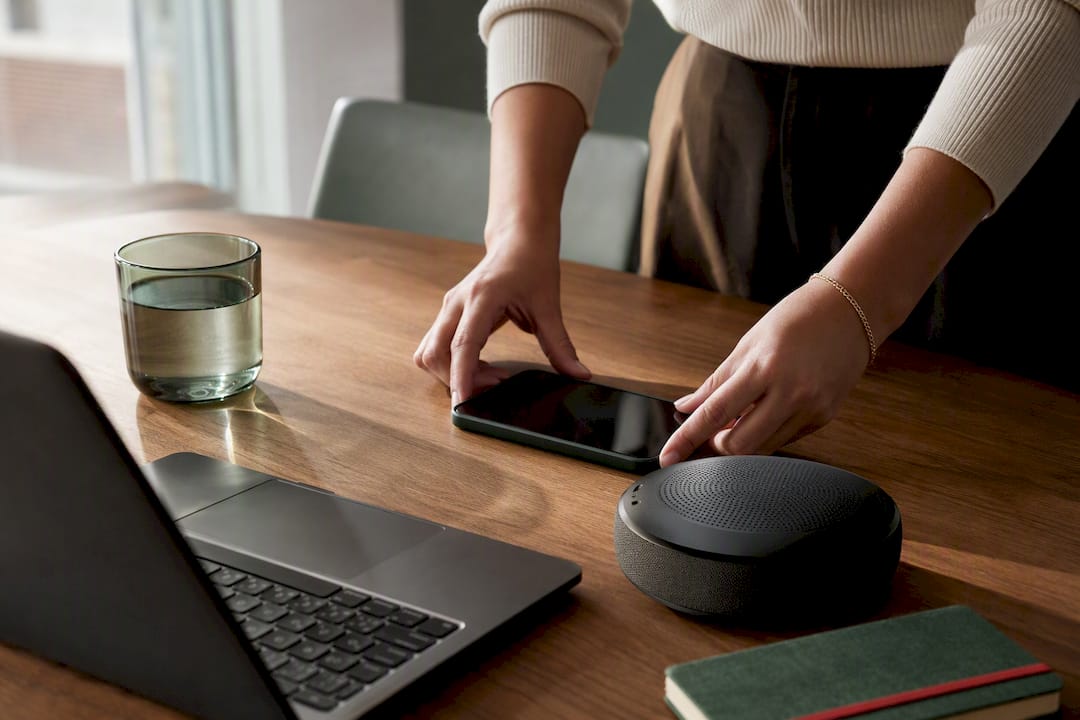
Larger rooms or noisier environments call for an upgrade. Boundary mics laid flat on a conference table capture a wider radius without the hollow, distant sound you get from a phone at the far end of a long table. For meetings with many participants, or rooms with hard floors and glass walls, a multi-mic setup with individual lapel mics for key speakers gives much cleaner separation between voices.
Before any meeting that matters, run through a short checklist:
- Charge the device fully or plug it in. A dead battery mid-meeting is the most common cause of lost transcripts.
- Confirm the output file format works with your transcription tool (most handle .wav or .m4a without issue).
- Take a 15-second test recording and play it back at meeting volume.
- Decide how you'll notify participants that recording is happening, and get that consent before you press record.
Pro Tip: Keep a spare charged phone in your bag as a fallback recorder. If your primary device fails, you'll still have audio, even if it's a rougher backup.
How should you place the microphone for the cleanest audio?
Where you put the device matters almost as much as which device you buy. Rev's guidance on meeting transcription stresses that preparation and testing before the meeting materially cuts down on transcription errors later.
- Put the recording device in the centre of the table, not at one end, so speakers stay roughly equidistant from the microphone.
- Turn off or move away from HVAC vents, and if you can, close a door to reduce hallway noise bleeding in.
- Use soft furnishings to your advantage. A room with carpet, curtains, or upholstered chairs absorbs reverberation far better than a glass-walled meeting pod.
- Run the 15-second playback test at the volume you expect people to speak, not a whisper, and check the level meter doesn't peak into distortion.
A room that sounds fine to your ear can still confuse automatic speech recognition, because echo and overlapping reflections are exactly what trip up algorithms trained on clean audio.
Should you transcribe live or record and process afterwards?
The choice comes down to what you need faster: captions people can read during the meeting, or a transcript that's cleaner and easier to correct once everyone's left the room.
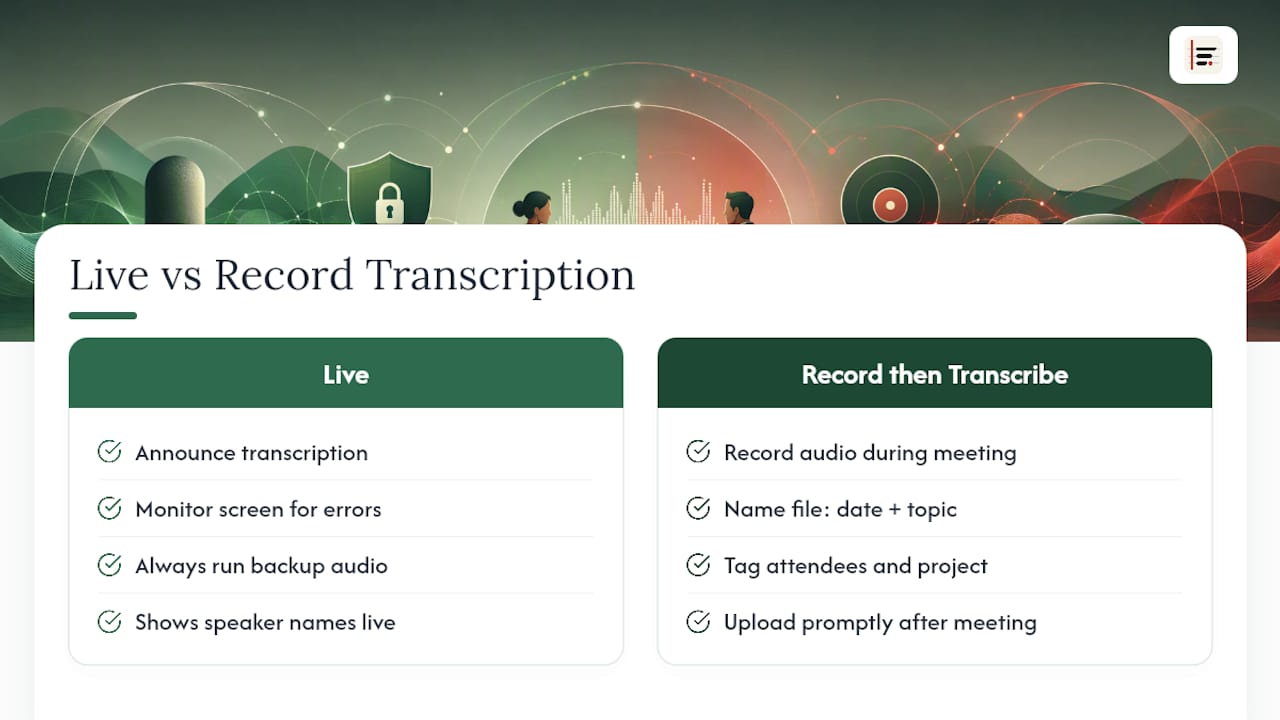
Live transcription, the kind Microsoft Teams offers for its own video calls, shows speaker names on screen as people talk and lets organisers download the transcript afterwards as a .docx or .vtt file. For in-person meetings without that platform in the loop, the equivalent is a transcription app running locally and displaying text in real time. The trade-off is real: live processing tends to be less accurate than post-processing, because there's no chance to re-listen to a mumbled phrase or resolve overlapping speech.
For live capture, the operational steps are simple: announce that transcription is running, keep an eye on the screen for obvious errors, and always run a backup audio recording in case the live feed drops out. For record-then-transcribe, name your file with the date and meeting topic immediately, tag any relevant metadata (attendees, project name), and upload promptly while details are still fresh in your memory.
Favour live transcription when the meeting is urgent and decisions need to be actioned that same hour. Favour record-then-transcribe when the content is sensitive, the group is large, or accuracy on names and figures outweighs speed.
How do you label speakers and use timestamps well?
Getting a transcript that says who said what, and when, is what turns a wall of text into something a team can actually act on.
- Start every meeting with brief verbal introductions. A five-second round of "this is Sarah, this is Tom" gives both automatic diarisation and any human editor a reference point.
- If the software supports it, add manual speaker tags as you go rather than trying to reconstruct them afterwards.
- Automated diarisation, the process of splitting audio into distinct speakers, works reasonably well with two or three voices but degrades with crosstalk or similar-sounding speakers, so always spot-check the first few minutes against what you remember.
- Use timestamps to jump straight to decision points and action items rather than rereading the whole transcript top to bottom.
What accuracy should you expect and how do you edit efficiently?
Accuracy depends heavily on room acoustics, how much people talk over each other, and regional accents. Clean audio in a quiet room with one speaker at a time tends to produce a highly usable draft; a noisy room with five people interrupting each other will need more correction.
Focus your editing time where it counts:
- Check every proper name and job title first, since these are what automatic transcription gets wrong most often.
- Verify numbers, dates, and figures. A misheard "15" instead of "50" can cause real problems downstream.
- Confirm decisions and action owners are attributed to the right person.
- Use your software's search function to jump straight to flagged low-confidence words rather than reading start to finish.
Pro Tip: Learn the keyboard shortcuts for jumping back a few seconds and replaying audio. It's faster than scrubbing with a mouse and adds up over dozens of meetings.
How should you handle privacy and consent for meeting audio?
Recording a room full of colleagues or clients carries real obligations, not just courtesy.
- State clearly at the start of the meeting that recording is happening and what it's for, and treat a verbal acknowledgement on the recording itself as your consent record, or circulate a written notice beforehand for recurring meetings.
- Decide upfront whether processing happens on-device or via cloud upload. On-device keeps audio from ever leaving the room's hardware, which matters for anything commercially sensitive; cloud processing can offer more compute power but means the recording travels over a network.
- Set a retention policy, delete audio once the transcript is confirmed accurate if you don't need the source file, and restrict transcript access to people who genuinely need it.
How does on-device processing change what's possible for teams?
Minuted approaches in-person meeting transcription from the privacy angle first: it processes audio on-device, so recordings never have to leave the room to become a structured transcript. Real-time transcription works without an internet connection, which matters in meeting rooms with patchy Wi-Fi or in organisations that simply won't allow sensitive audio to touch a cloud server.
The workflows described above, local recording, careful mic placement, speaker labelling, and a disciplined edit pass, map directly onto how Minuted is built to be used, right down to converting flagged action items into calendar entries and task-app cards.
What busy teams actually get wrong about meeting transcription
The teams that get the most out of transcription aren't the ones with the fanciest microphone. They're the ones with a fallback recording running even when live captions are on, because live feeds drop and nobody notices until the meeting's over. Two rules stick: always have a second recording device charged, and never skip the 15-second test, however rushed the room feels.
— James
Try in-person meeting transcription with Minuted
Minuted gives you a way to put everything above into practice without a second thought about where the audio ends up. It handles in-person meeting transcription with real-time, on-device processing that works even without an internet connection, so nothing about the recording ever has to leave the device it was captured on.
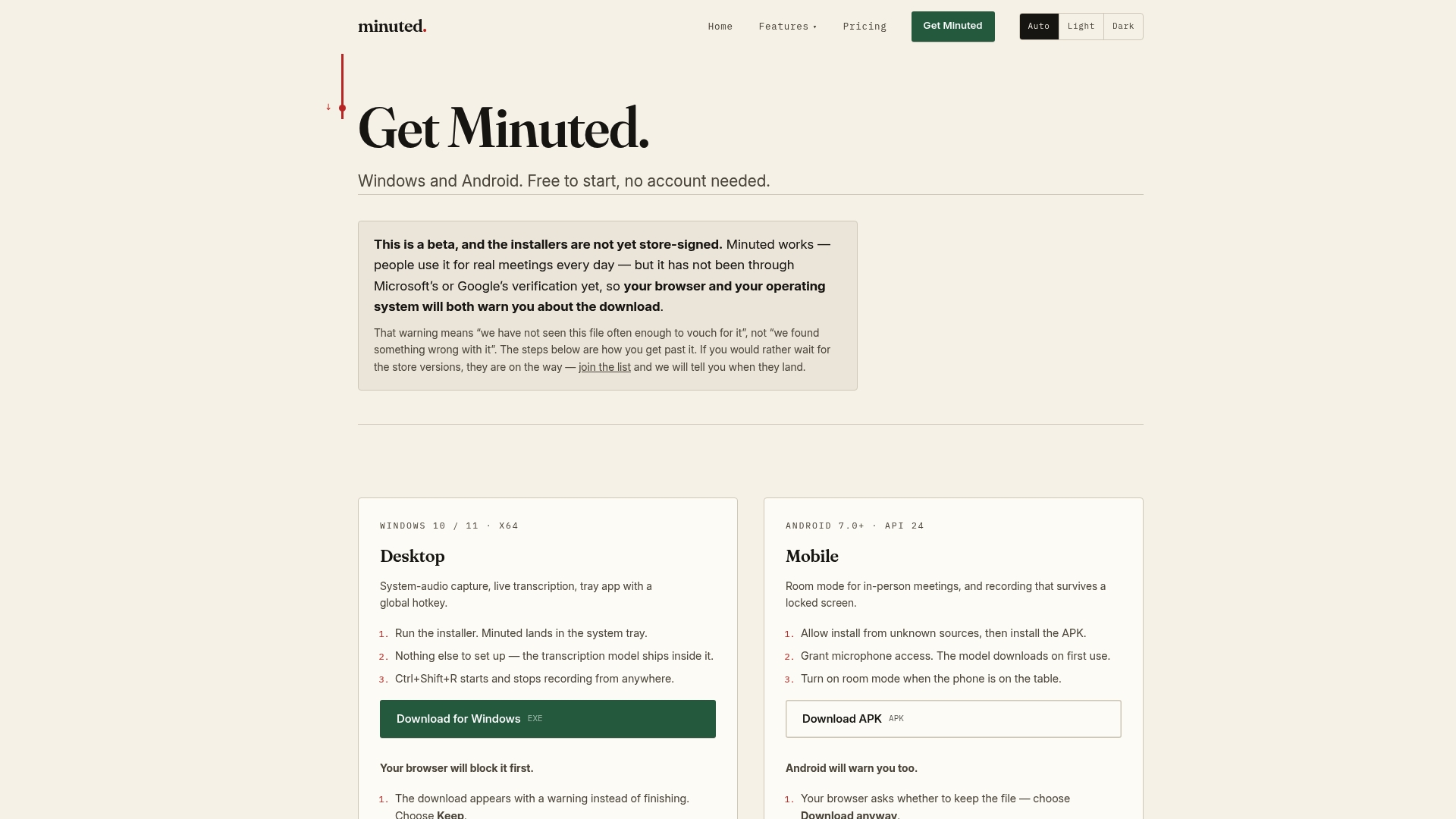
The software includes speaker labelling features and supports transcript syncing with calendar and task management apps, facilitating turning action items into assignable work. If privacy trade-offs between on-device and cloud processing matter to your organisation, the breakdown on what leaves your device is worth a look before you commit to any tool. Start with the free local mode and see how a real meeting transcript looks by trying Minuted on your next in-person session.
Sources
For platform-specific detail on live captions and downloadable transcripts, see Microsoft's Teams transcript guidance. For broader context on how AI meeting assistants are reshaping note-taking, The Wall Street Journal's coverage is a useful starting point.
- Start, stop, and download live transcripts in Microsoft Teams meetings | Microsoft Support
- How to transcribe meeting minutes for better note‑taking | Rev