
Use your meeting type to pick one of three reliable approaches: built-in live transcription for supported video calls, a privacy-aware on-device recorder for in-person meetings, or an upload workflow for bulk processing after the fact. Check consent and organiser permissions before you press record. The underlying workflow stays the same either way: capture, transcribe, review, then turn the result into structured minutes.
TL;DR:
- Use on-device recorders for confidential, in-person meetings to avoid privacy concerns associated with cloud-based transcription services.
- Prioritize reviewing and structuring transcripts immediately after meetings to extract decisions, owners, and deadlines, reducing manual effort later.
- Ensure proper permissions and consent are obtained before recording, especially considering organizational policies and GDPR requirements in the EU.
- Optimize audio setup with quality microphones, speaker introductions, and controlled speech overlap to improve transcription accuracy and reduce review time.
- Select transcription methods based on privacy needs, platform restrictions, and meeting type, with workflows tailored for scheduled calls, in-person, or large batch recordings.
Table of Contents
- How to transcribe meetings: choosing the right method
- Step-by-step meeting transcription: from raw audio to finished minutes
- How do you start and stop transcription on Teams, Zoom and Meet?
- What audio setup actually improves transcription accuracy?
- What permissions and consent do you need before recording?
- Why transcripts alone rarely produce action
- What most advice on this topic misses
- Turn transcripts into minutes without the privacy trade-off
- Sources
How to transcribe meetings: choosing the right method
Four practical methods cover almost every meeting scenario, and picking wrong is the main reason transcripts end up unusable.
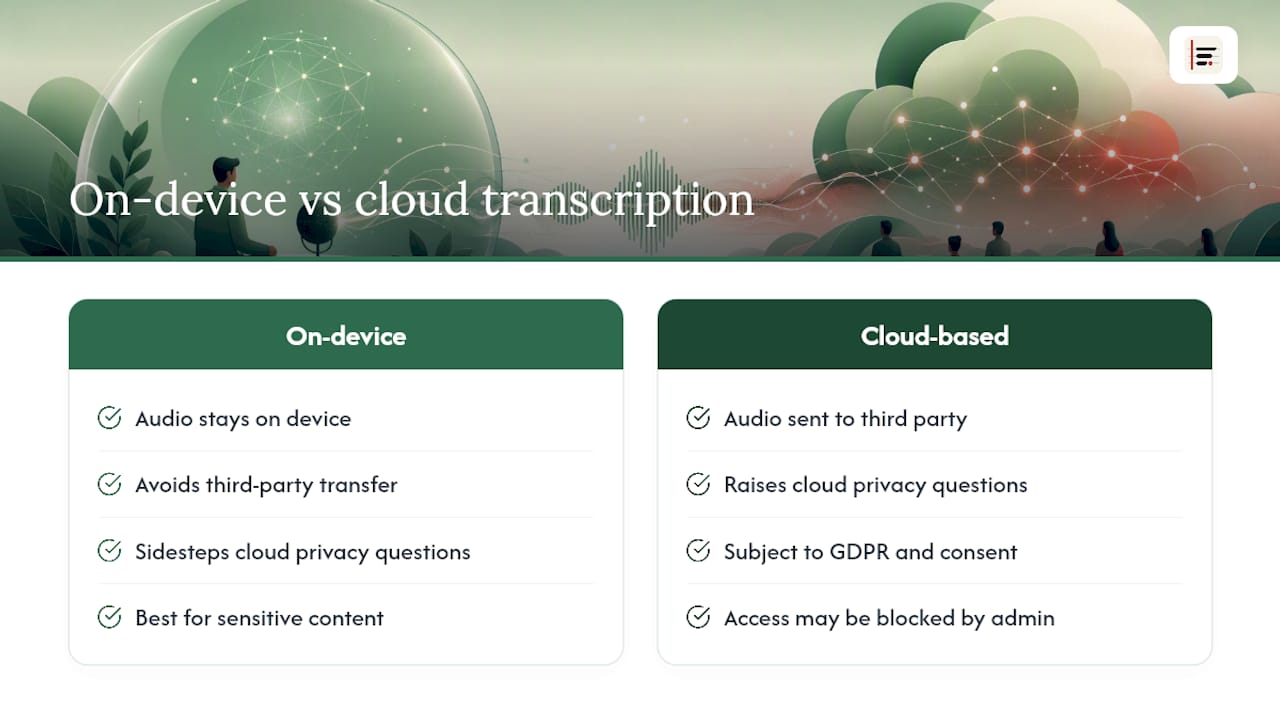
Built-in platform transcription works inside Microsoft Teams, Zoom, and Google Meet. It's the fastest option for scheduled video calls because there's nothing extra to install, but it depends on admin permissions and subscription tier, and accuracy dips with cross-talk or strong accents.
AI meeting assistants join calls as bots or plug into your calendar, generating summaries and action items automatically. They save review time but usually process audio in the cloud, which raises privacy questions for sensitive discussions.
On-device recorders capture and transcribe locally, without sending audio anywhere. They suit in-person meetings, confidential negotiations, or any organisation with a policy against cloud processing.
Manual or upload workflows mean recording on any device, then feeding the file into a transcription service afterwards. This fits large batches of recordings or meetings where nobody set up live transcription in advance.
Use these signals to decide quickly:
- Privacy is non-negotiable → on-device recorder
- Admin has restricted platform recording → upload workflow, or a dedicated app
- Meeting is multilingual → check the platform's language support before you rely on live transcription
- You're capturing an in-person meeting with no shared video call → on-device recorder or upload
Step-by-step meeting transcription: from raw audio to finished minutes
A repeatable workflow beats an ad hoc one, especially once transcribing team meetings becomes a weekly habit rather than an occasional task.
- Capture. Name the file with date and meeting title before you even start (e.g. "2026-03-12 Product Sync"), and confirm where it will be stored. Consistent naming saves far more time than it costs.
- Transcribe. Enable speaker labelling, timestamps, and the correct language setting before the meeting starts, not after. These three settings determine whether the raw output is usable or just noise.
- Review and edit. Fix misheard names, acronyms, and numbers first. These are the errors that change meaning, unlike minor grammar slips.
- Summarise. Pull out decisions and next steps as short, standalone statements rather than paraphrasing the whole conversation.
- Assign and share. Attach an owner and a due date to every action item, then distribute the minutes to attendees and anyone who needs visibility.
Reviewing a transcript typically takes a few minutes per hour of recording when audio quality is good; poor audio or heavy cross-talk multiplies that considerably. Budget review time accordingly rather than assuming a transcript is finished the moment it's generated.
Keep timestamps and, where your tool supports it, a click-to-play link on each key decision. That single habit turns "I think someone said we'd ship in April" into a verifiable fact anyone on the team can check.
Pro Tip: Do the review pass within an hour of the meeting ending, while names, acronyms and context are still fresh in your head. Waiting a day roughly doubles correction time.
How do you start and stop transcription on Teams, Zoom and Meet?
Each major platform handles live transcription slightly differently, and the difference usually comes down to where files land and who can access them.
Microsoft Teams: open More actions during the call, select Record and transcribe, then choose Start transcription. Stop it the same way when the meeting ends. Recordings and transcripts save to the organiser's OneDrive or SharePoint, and access is governed by organisation policies, which is the usual reason a colleague can't find or download a transcript afterwards.
Zoom: choose local recording (saved to your device) or cloud recording, which also generates a searchable transcript on paid tiers. Once processing finishes, download both the audio and the transcript file from the cloud recordings panel.
Google Meet: open Activities, then Recording, and start capture. This feature requires an eligible Google Workspace edition, and recordings save to the organiser's Drive rather than every participant's account.
In-person meetings need a different approach entirely, since there's no platform doing the work for you:
- A phone voice memo is fine for a quick, low-stakes catch-up.
- A dedicated table recorder with a decent microphone handles small groups better than any phone.
- An on-device transcription app is the strongest option when the conversation covers anything confidential, since nothing leaves the room.
What audio setup actually improves transcription accuracy?
Cheap fixes here save disproportionate review time later.
- Use a headset or USB microphone for remote participants rather than laptop speakers, which pick up echo and room noise.
- Place a table recorder centrally, equidistant from speakers, rather than near whoever happens to be closest to a power socket.
- Test a 30-second recording before the meeting starts, particularly in an unfamiliar room.
- Ask everyone to introduce themselves at the start, which helps automatic speaker labelling lock onto distinct voices early.
- Encourage a short pause before replying and one speaker at a time, since overlapping speech is the single biggest cause of garbled transcripts.
Pro Tip: If your meeting regularly runs six or more participants, a dedicated microphone array beats any phone or laptop mic, however good the software is.
What permissions and consent do you need before recording?
Admin restrictions are the most common reason transcription simply doesn't start. Subscription tier and organiser role typically control access on platforms like Teams, so a blocked transcription button usually means checking with IT rather than a software fault.
Consent matters just as much as permission. Announce that you're recording at the start of the meeting and get a verbal acknowledgement, since expectations around this vary by jurisdiction and by internal policy, and assuming consent is never a safe shortcut. In the EU, the GDPR sets the statutory baseline for handling personal data captured this way.
Where the content is sensitive, on-device processing avoids sending audio to a third party altogether, which sidesteps most of the cloud-related privacy questions that come with vendor AI assistants.
Why transcripts alone rarely produce action
Most teams stop at the transcript, and that's the gap worth closing. A raw transcript, however accurate, still asks someone to reread the whole thing to find what was actually decided. The teams that get real value shift the effort towards structuring: pulling out decisions, owners, and due dates rather than leaving that work for whoever reads the document next.
This is the specific problem Minuted is built around. It:
- Processes audio on-device, so recordings never leave the machine
- Supports real-time transcription without an internet connection
- Labels speakers automatically during in-person and remote meetings
- Syncs with calendar and task apps so action items become real, tracked tasks rather than lines in a document
Rather than tackling this manually, tools built for AI document generation and drive syncing, such as Semester Flow, show how automated write-ups and file syncing are becoming standard expectations in this category.
What most advice on this topic misses
Most guidance on this subject focuses entirely on capture: which button to press, which app records the clearest audio. That's the easy half of the problem. The harder half, and the one that actually determines whether a meeting produced anything useful, is what happens after the recording stops.
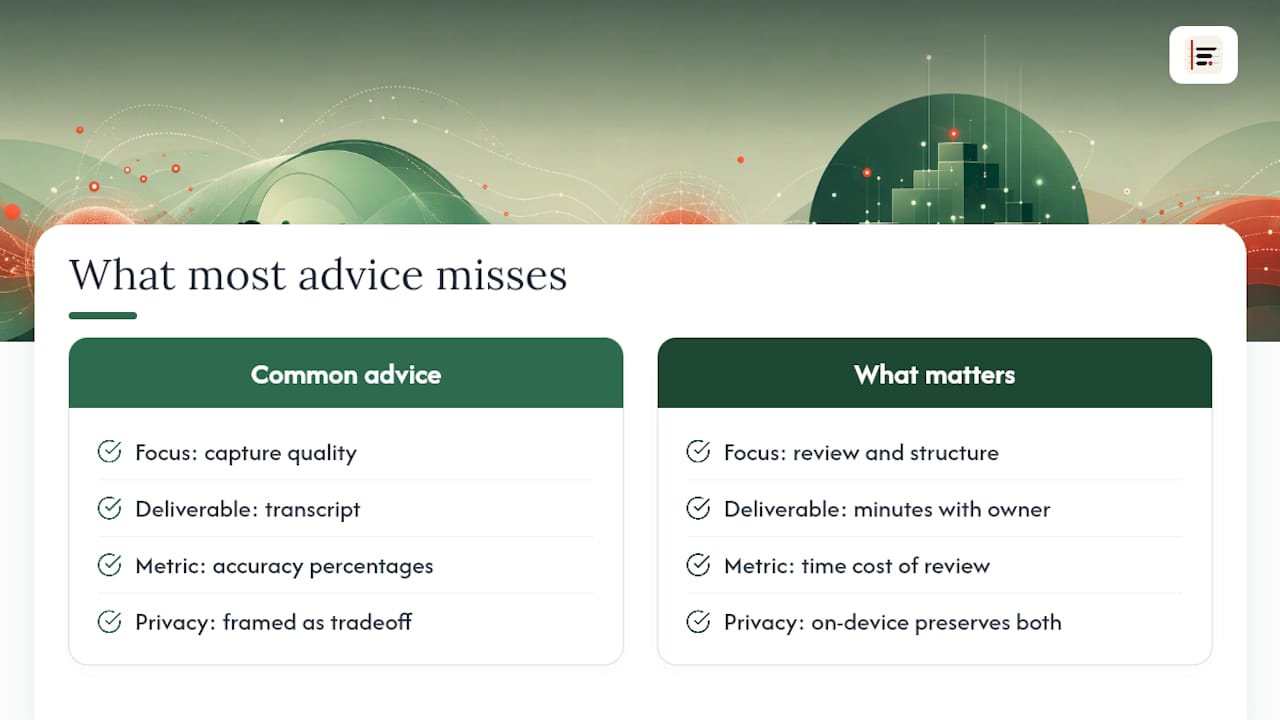
A transcript is not a deliverable. It's raw material. Teams that treat a completed transcript as "done" tend to rediscover the same unresolved decisions three meetings later, because nobody converted the conversation into an owner, a deadline, and a status. The conventional wisdom oversells accuracy percentages and undersells the review-and-structure step, which is where the real time cost sits.
The other overlooked point is that privacy and productivity aren't actually in tension, despite how the tooling often gets framed. On-device processing doesn't have to mean slower or less capable. It means the accuracy work happens locally instead of on someone else's server, which matters considerably more once meetings touch commercial terms, personnel matters, or anything an organisation genuinely can't risk exposing. Readers should prioritise the review and minute-writing habit first, then choose whichever capture method fits their privacy requirements, not the other way round.
— James
Turn transcripts into minutes without the privacy trade-off
Everything in this guide points to the same bottleneck: getting from a recording to structured minutes without losing hours to manual review or handing sensitive audio to a cloud server. Minuted is built around exactly that path. It captures and transcribes on-device, labels speakers automatically, and turns the result into structured minutes with decisions, owners, and due dates, then pushes those tasks straight into your calendar or task manager.
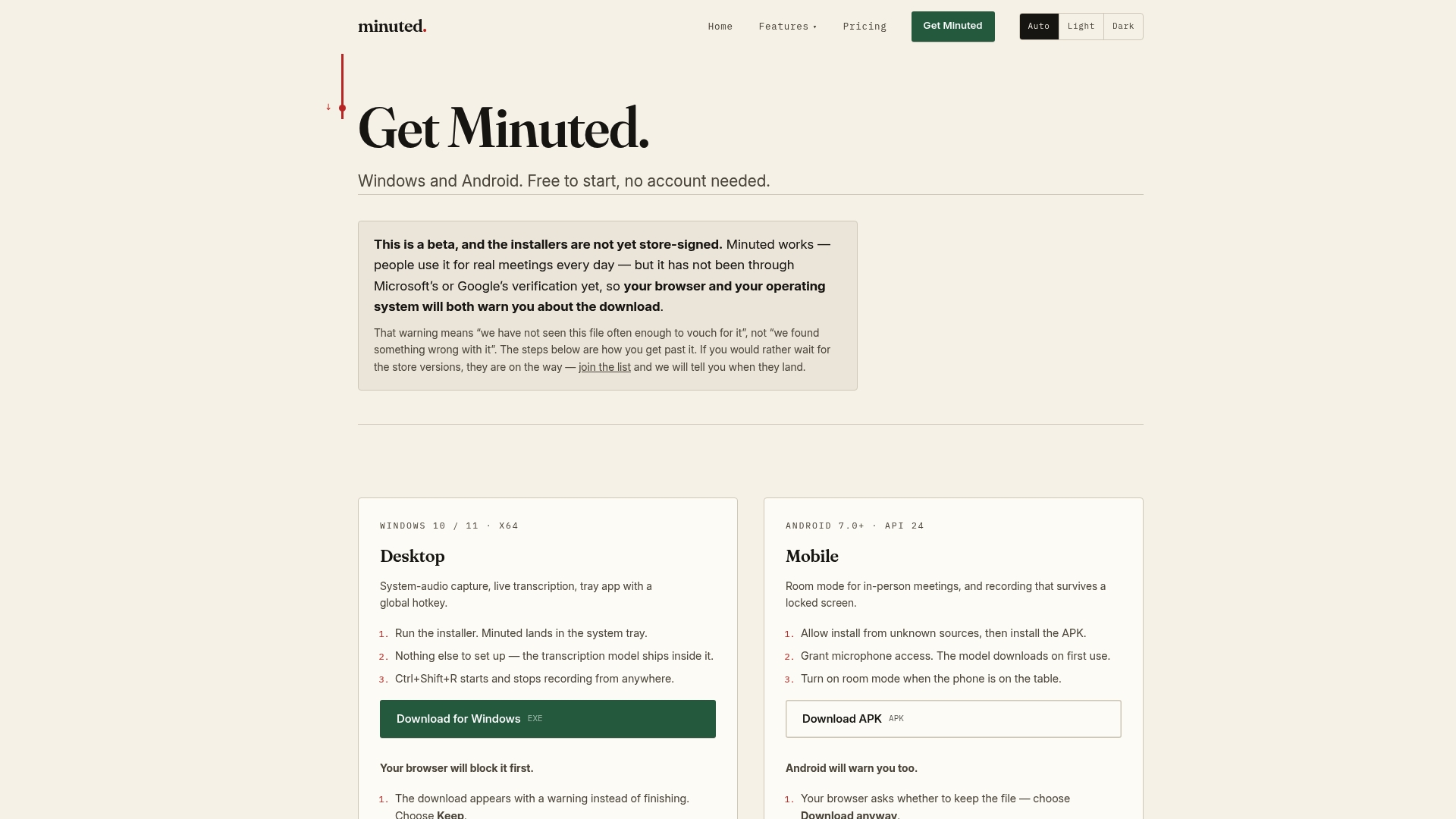
For in-person meetings specifically, the in-person meeting notes workflow keeps everything local, with no audio ever leaving the device. If you want to understand what data remains local and what may be transmitted across different notetakers, the notetaker privacy comparison provides a clear explanation. Minuted runs on a free unlimited local mode, with paid plans unlocking additional features like cloud processing minutes and integrations. Try it on your next meeting and see how much of the review step disappears.
Sources
For procedural detail beyond this guide, see Microsoft's own documentation on starting, stopping, and downloading live transcripts in Teams, the recording and transcription overview covering admin controls, and the GDPR text for the legal framework on personal data in the EU. Zoom and Google Meet procedural steps are covered in this transcription workflow guide.
- Start, stop, and download live transcripts in Microsoft Teams meetings
- Recording and transcription overview for Microsoft Teams
- Regulation (EU) 2016/679 (General Data Protection Regulation)